Interactive Demo
Watch the full registration walkthrough in the interactive demo below, then follow the written steps if you need more detail.Step-by-Step Walkthrough
1
Enter Your Beta Access Code
ReferralCatch is currently in beta. When you visit the app, you’ll see an Access restricted screen. Enter the access code you received and click Submit.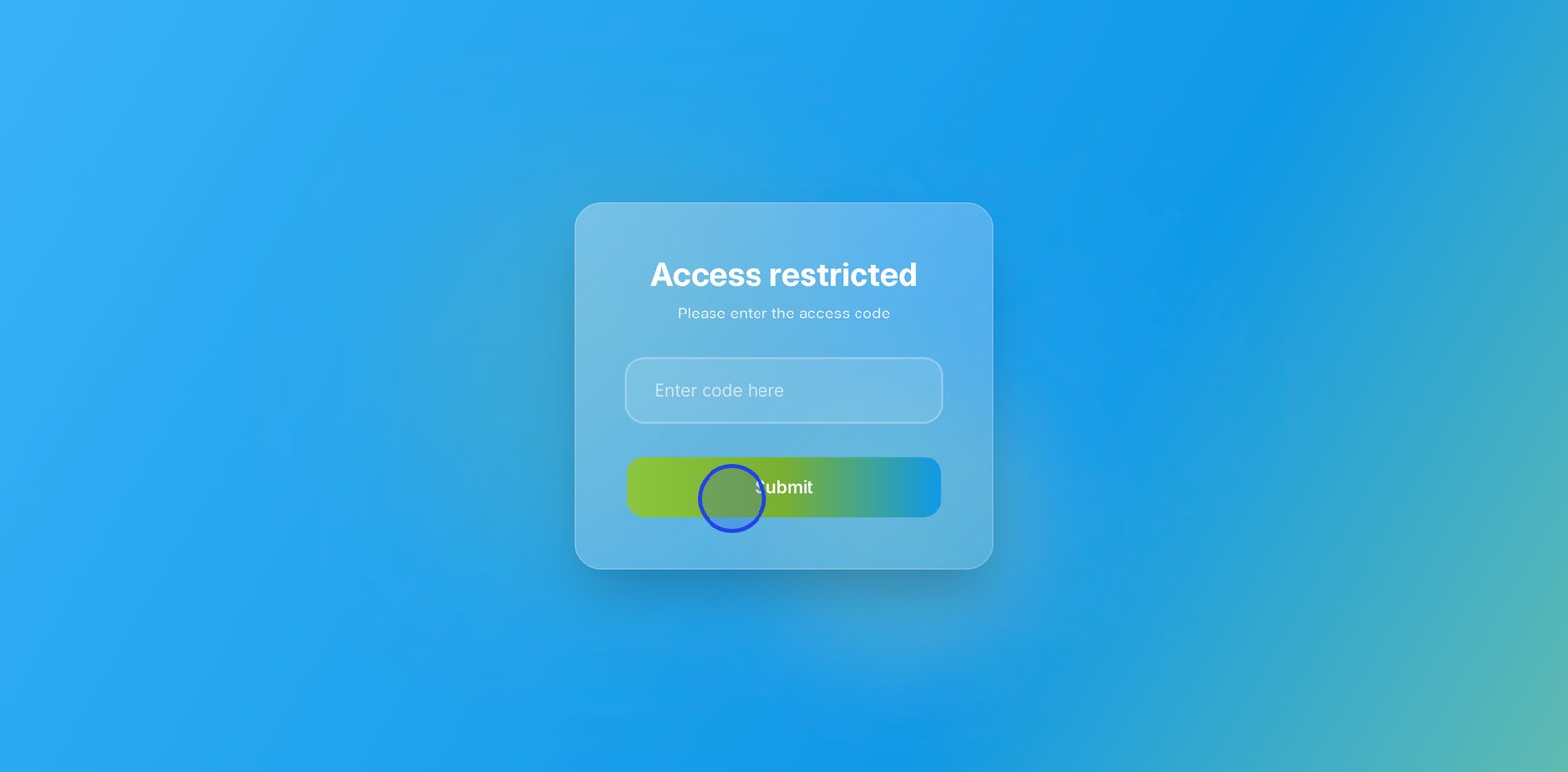
Don’t have an access code? Visit referralcatch.com and click Join Beta to request one. See How to Join the Beta for details.
2
Choose Your Role
Select the role that best describes your practice. For a dental office registering as a referring practice, choose General-Dentist.
3
Create Your Account
Fill out the registration form with your practice details.Dental office information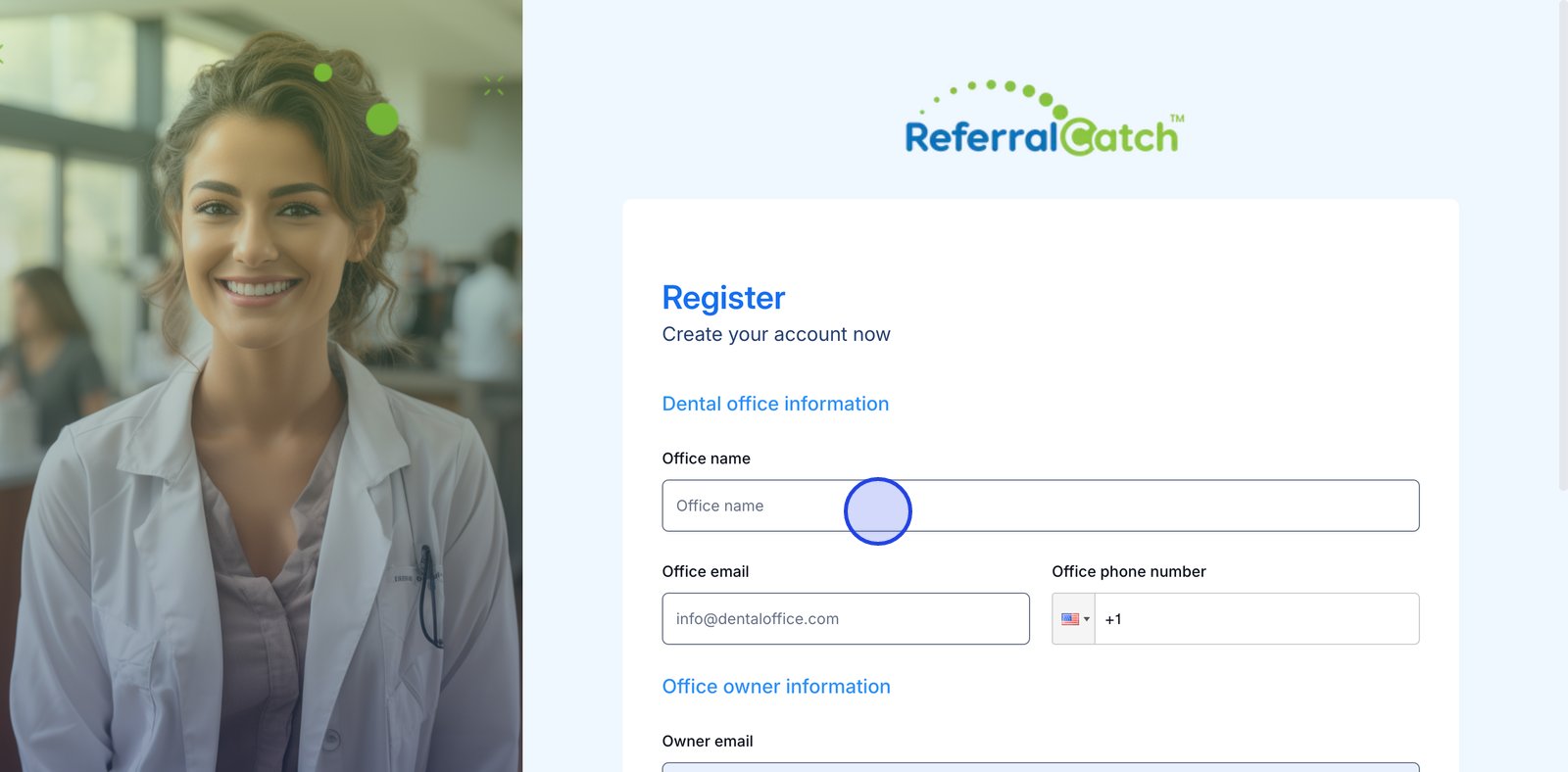
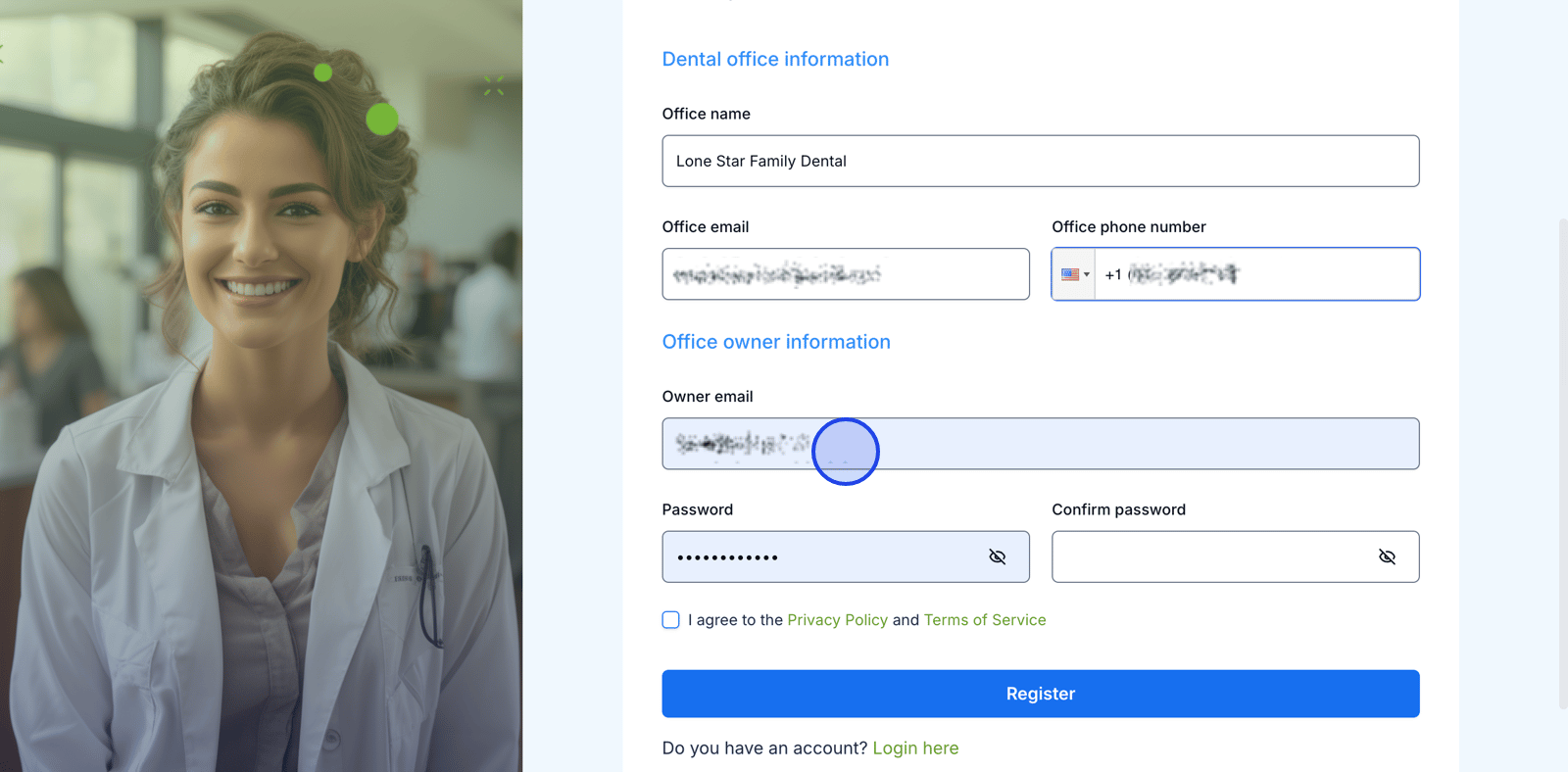
- Office name
- Office email
- Office phone number
- Owner email
- Password and confirm password
- Check the box to agree to the Privacy Policy and Terms of Service
4
Verify Your Email
Check your inbox for a 6-digit authentication code from ReferralCatch. Enter the code and click Verify.

Didn’t receive the code? Click Resend code on the authentication screen. Check your spam folder if it doesn’t arrive within a few minutes.
5
Welcome — Complete Your Profile
After verifying your email, you’ll see a welcome screen. Click Complete profile → to begin setting up your practice profile.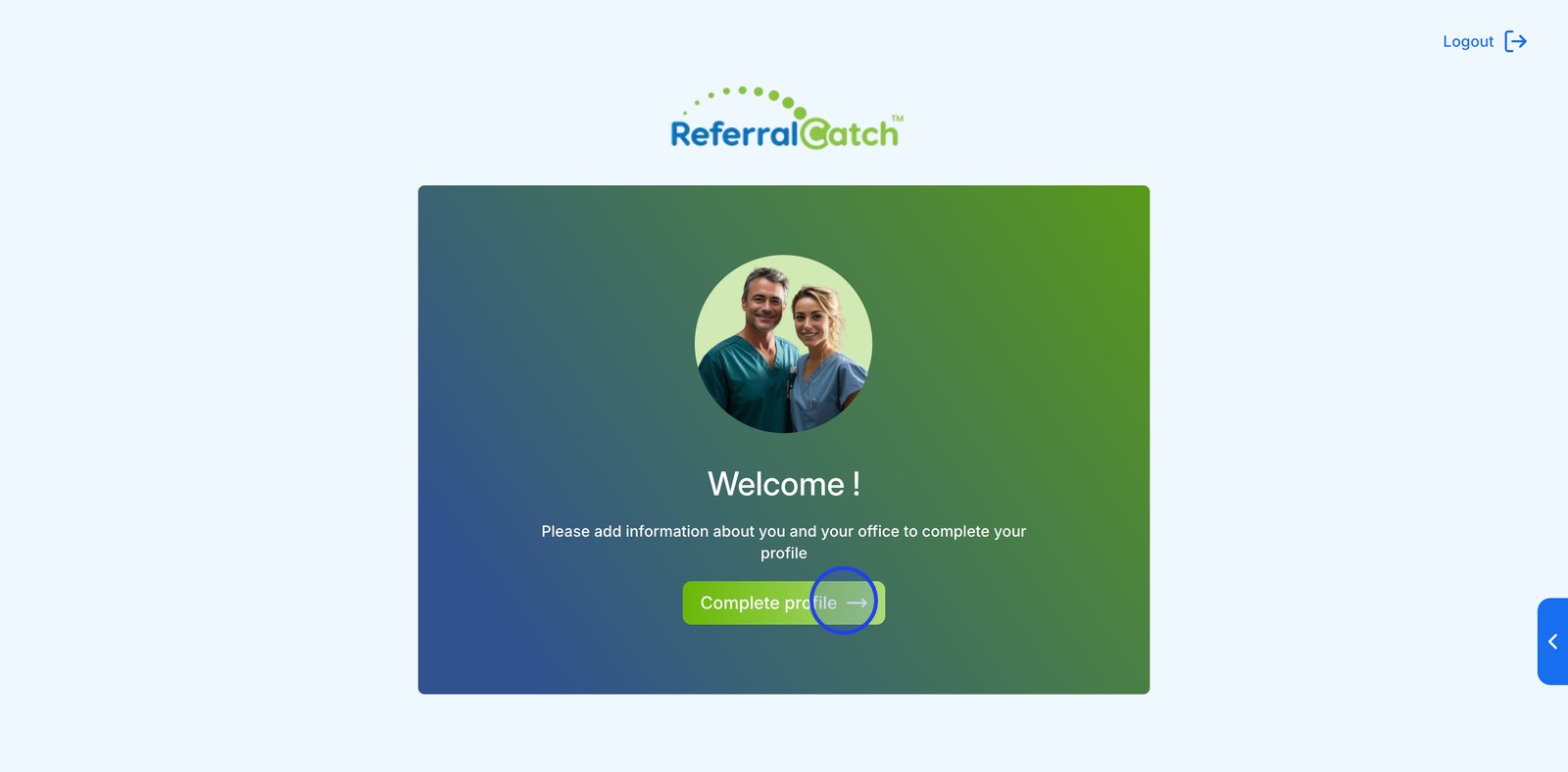
6
Step 1/6 — Add Owner Personal Information
Fill in the office owner’s personal details: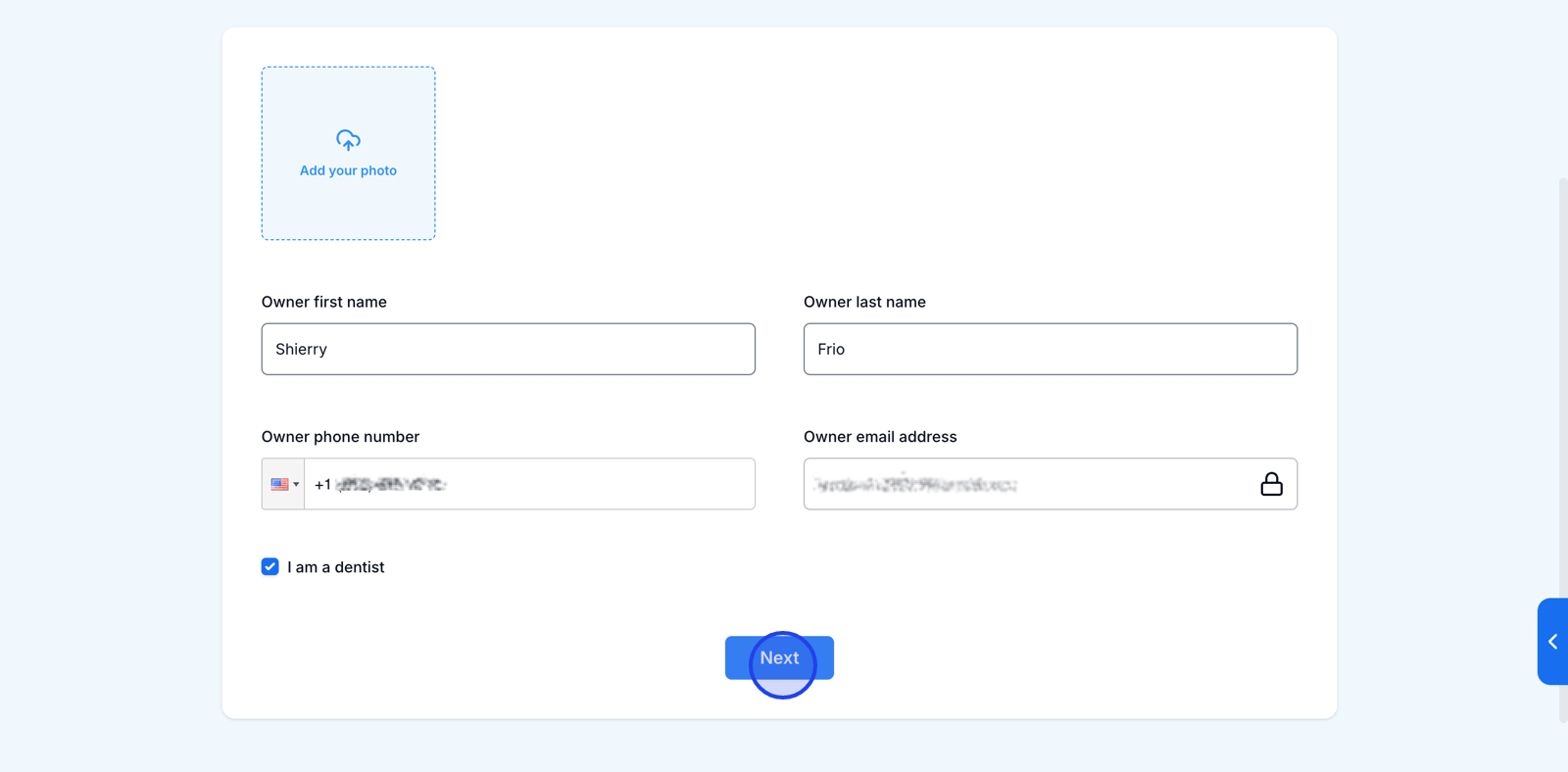
- Click the Add your photo area to upload a profile photo (optional)
- First name and last name
- Phone number
- Your email address is pre-filled and locked to the one used during registration
- Check I am a dentist if applicable
7
Step 2/6 — Add Office Information
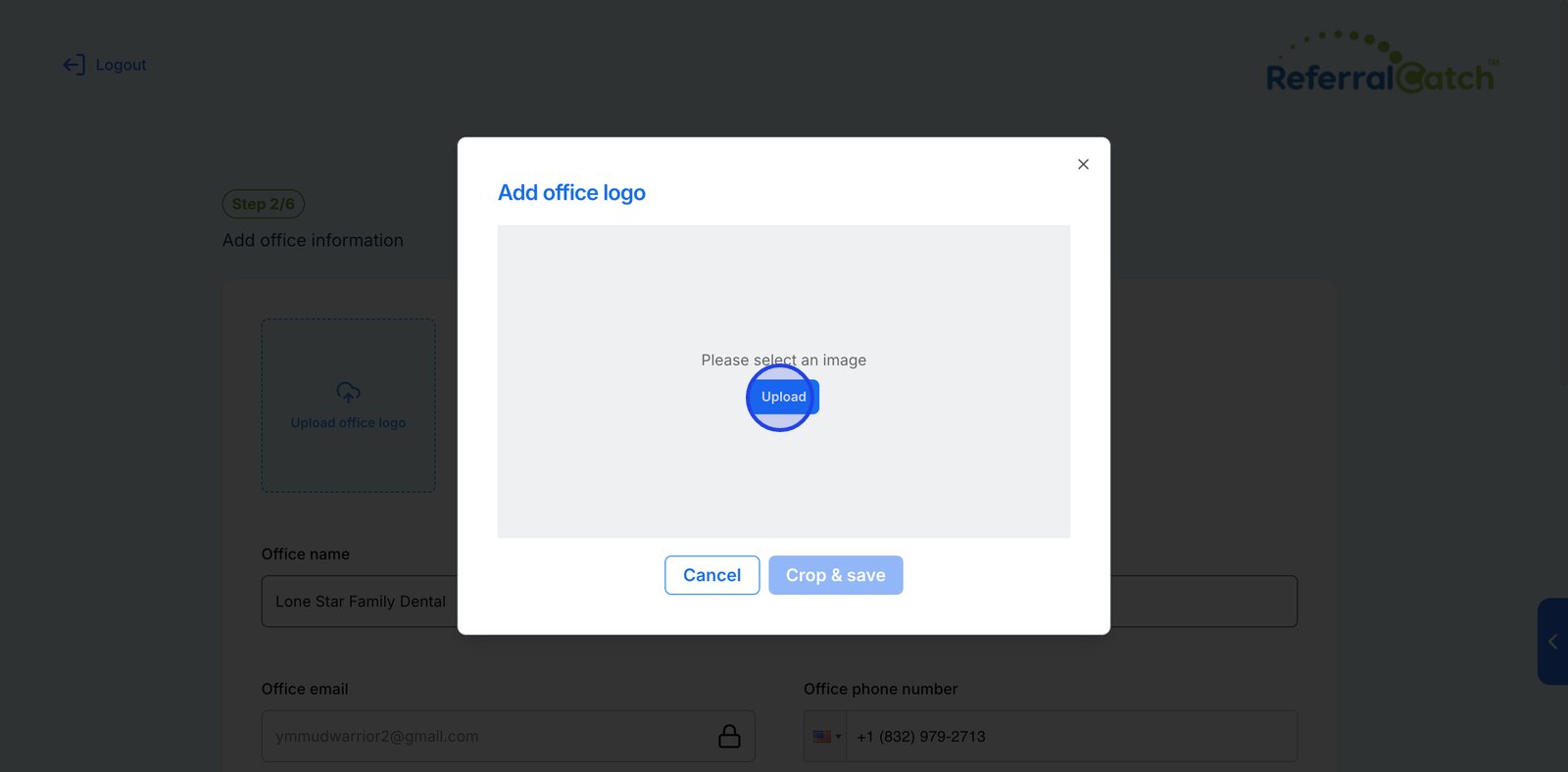
Fill in your practice’s office details. Start by clicking the Upload office logo area to add your practice logo.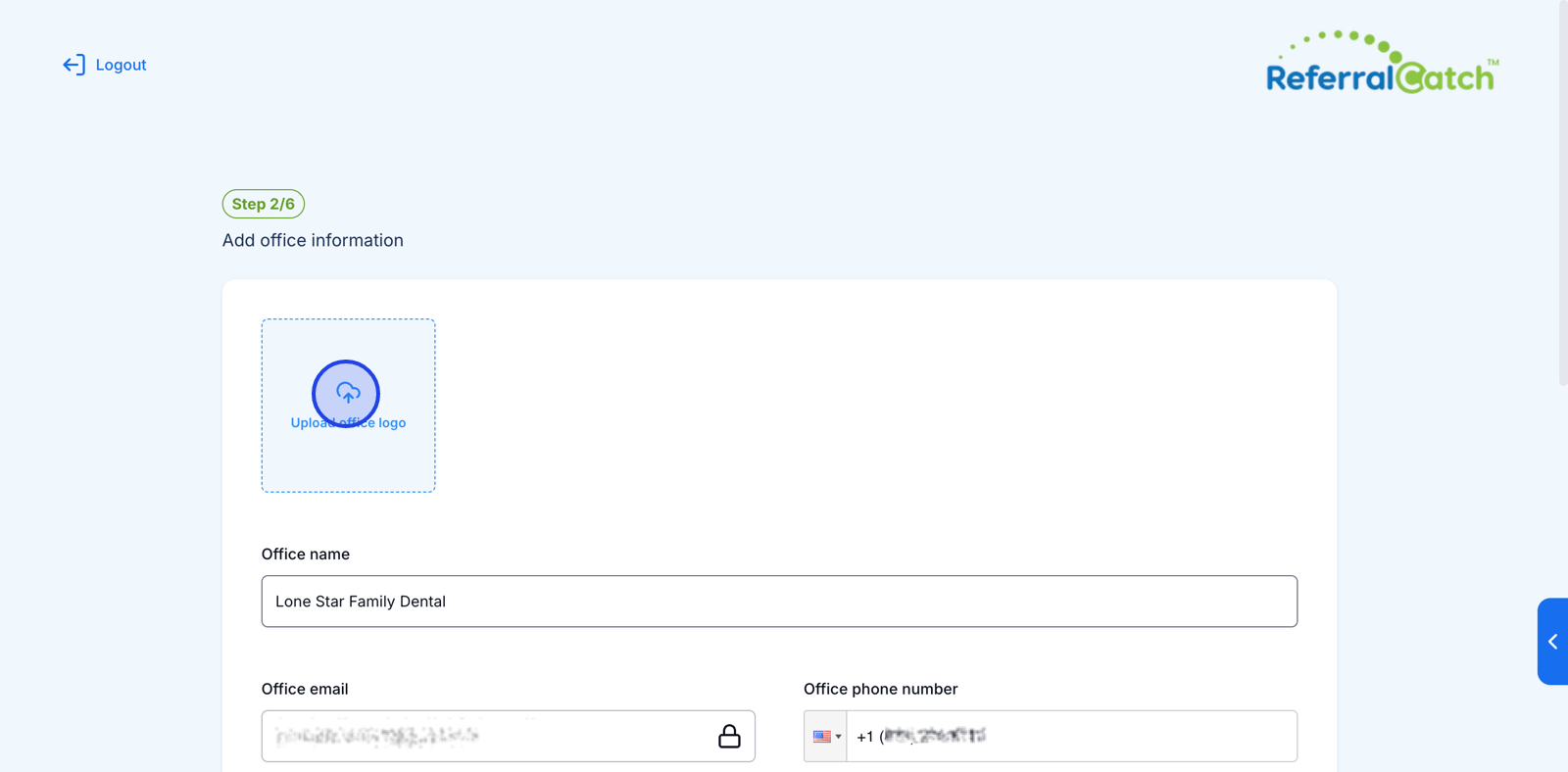 A dialog will open — click Upload to select an image file, then click Crop & save.
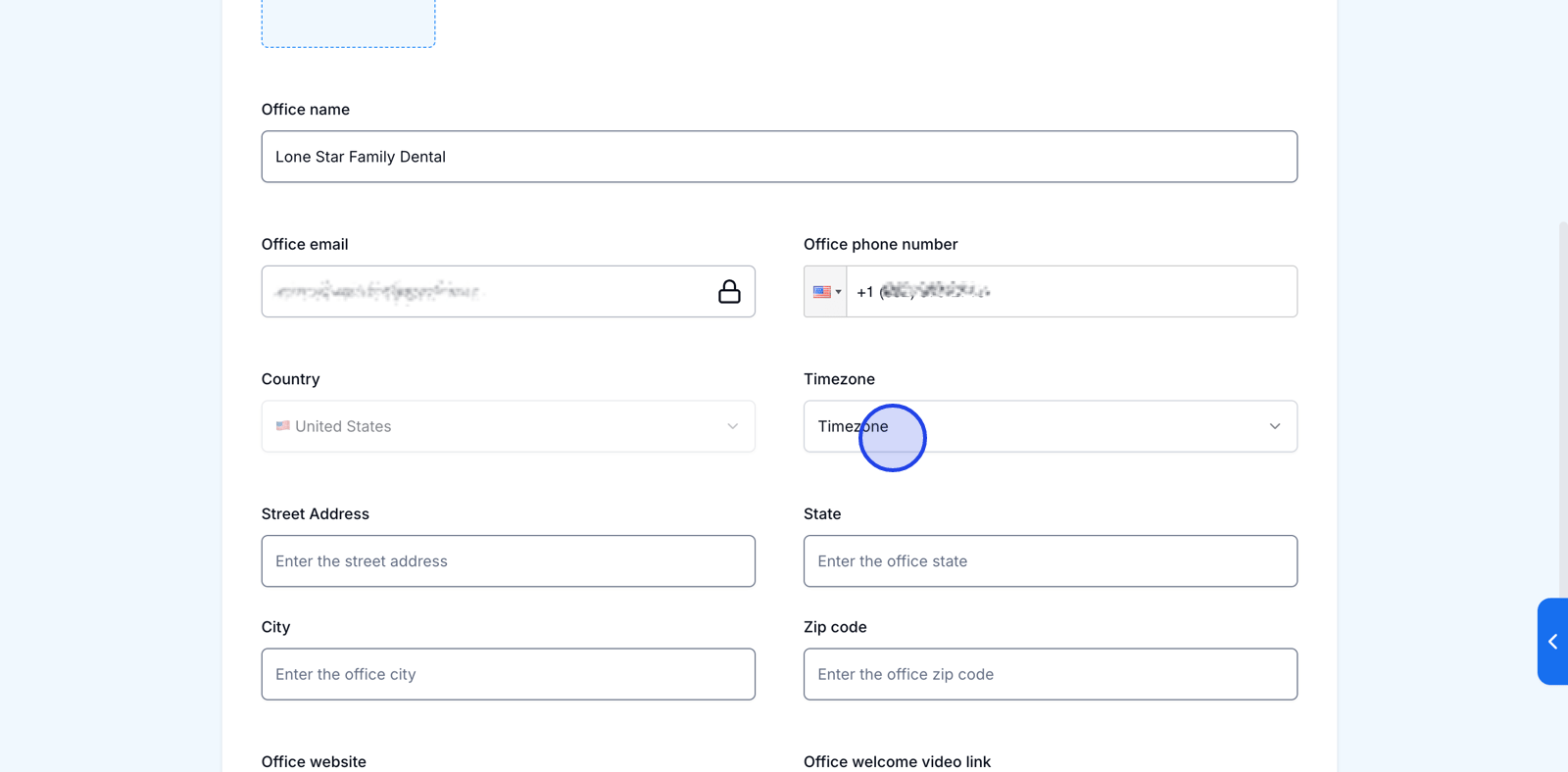
 Scroll down to complete the remaining fields:
A dialog will open — click Upload to select an image file, then click Crop & save.Scroll down to complete the remaining fields:- Country and Timezone
- Street address, State, City, Zip code
- Office website
-
Office welcome video link (optional)
8
Step 3/6 — Add Manager and Front Desk Users
Add your office staff by clicking Add new + under the Manager or Front desk user section. You’ll enter each team member’s name, username, and email.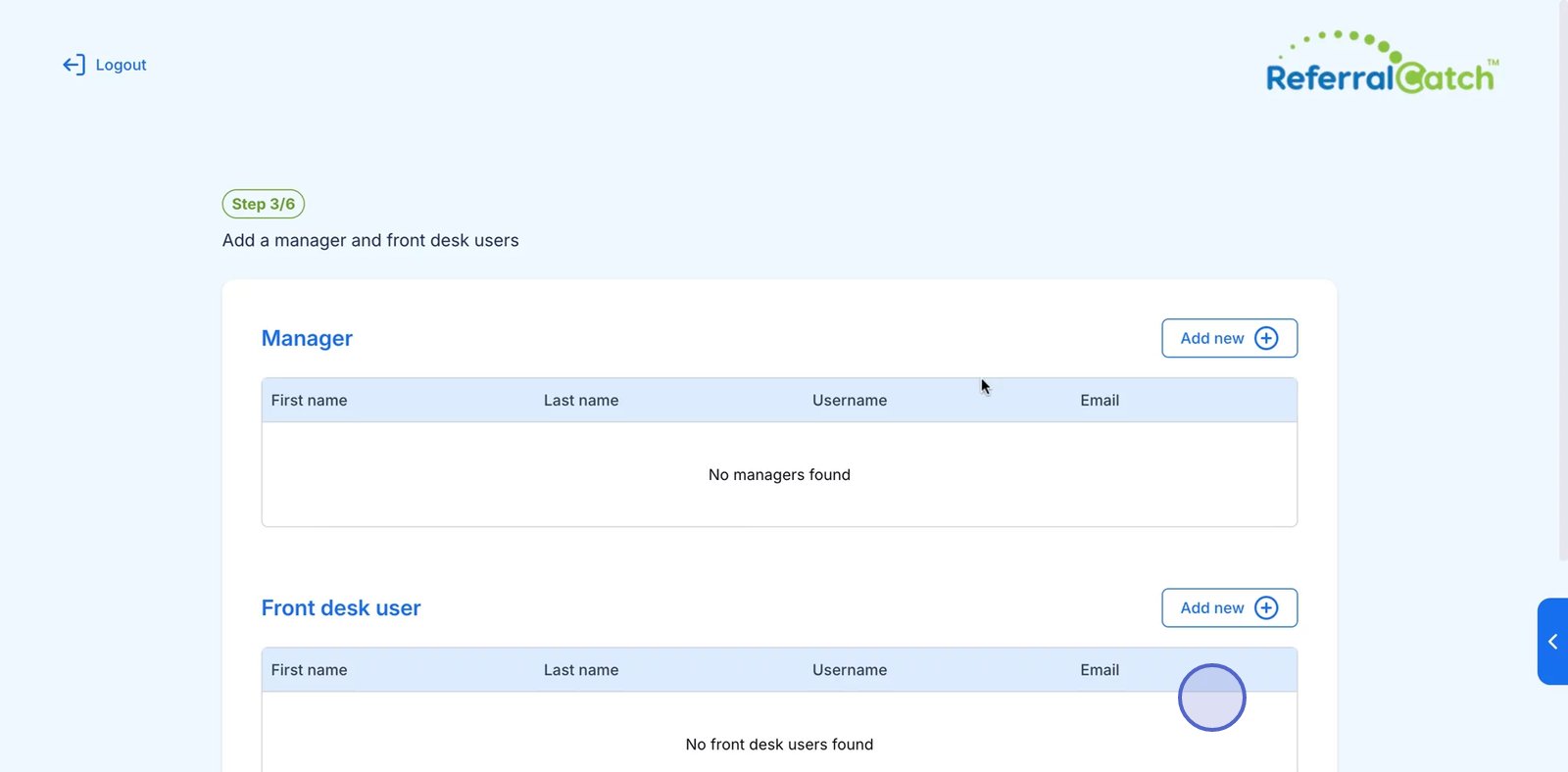
You can skip this step now and add team members later from your account settings.
9
Step 6/6 — Add Office Procedures
Add the dental procedures your office offers. You have two options: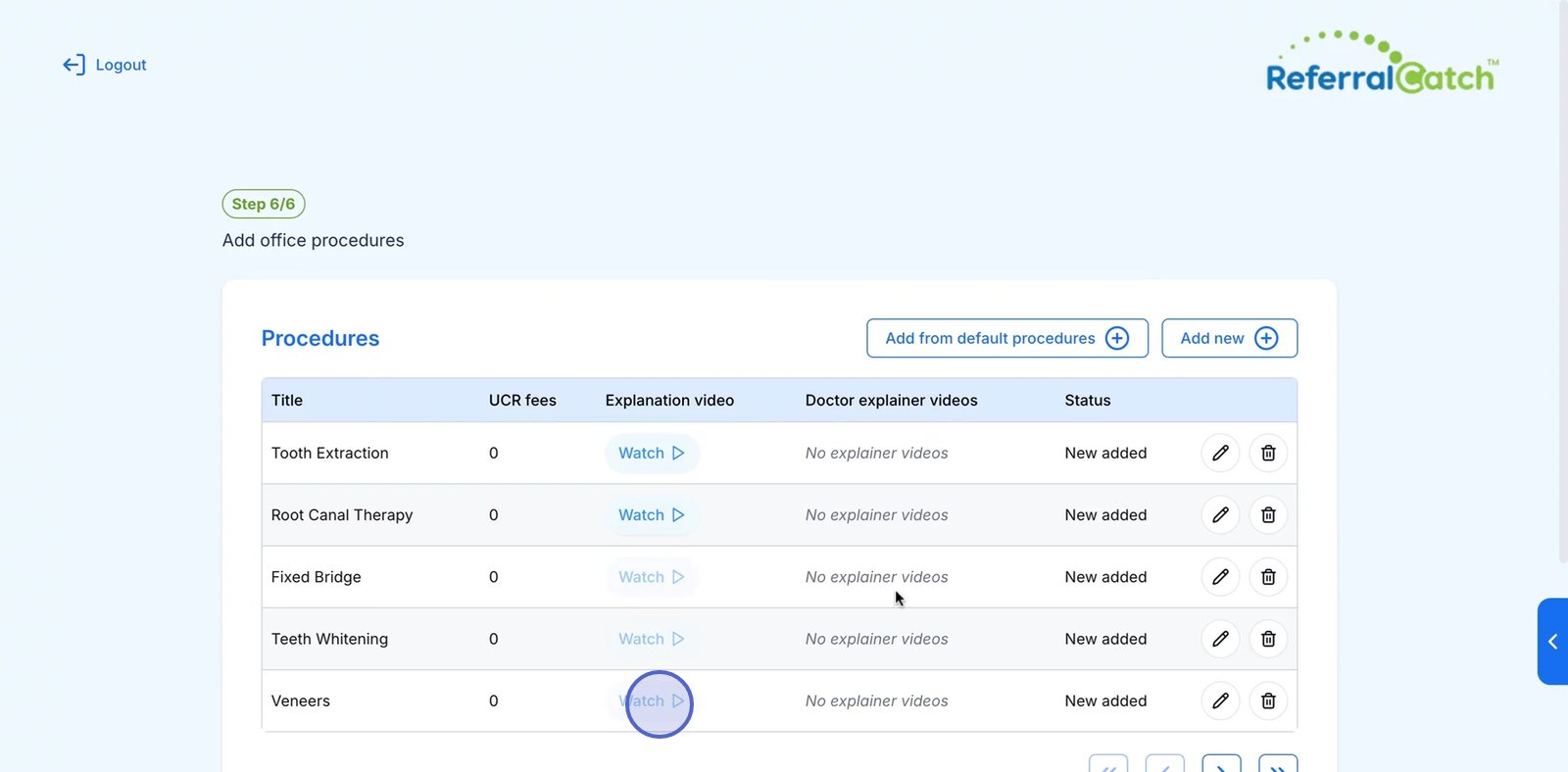 Click Next to finish setup.
- Add from default procedures — select from a pre-built list of common dental procedures
-
Add new + — manually add a custom procedure
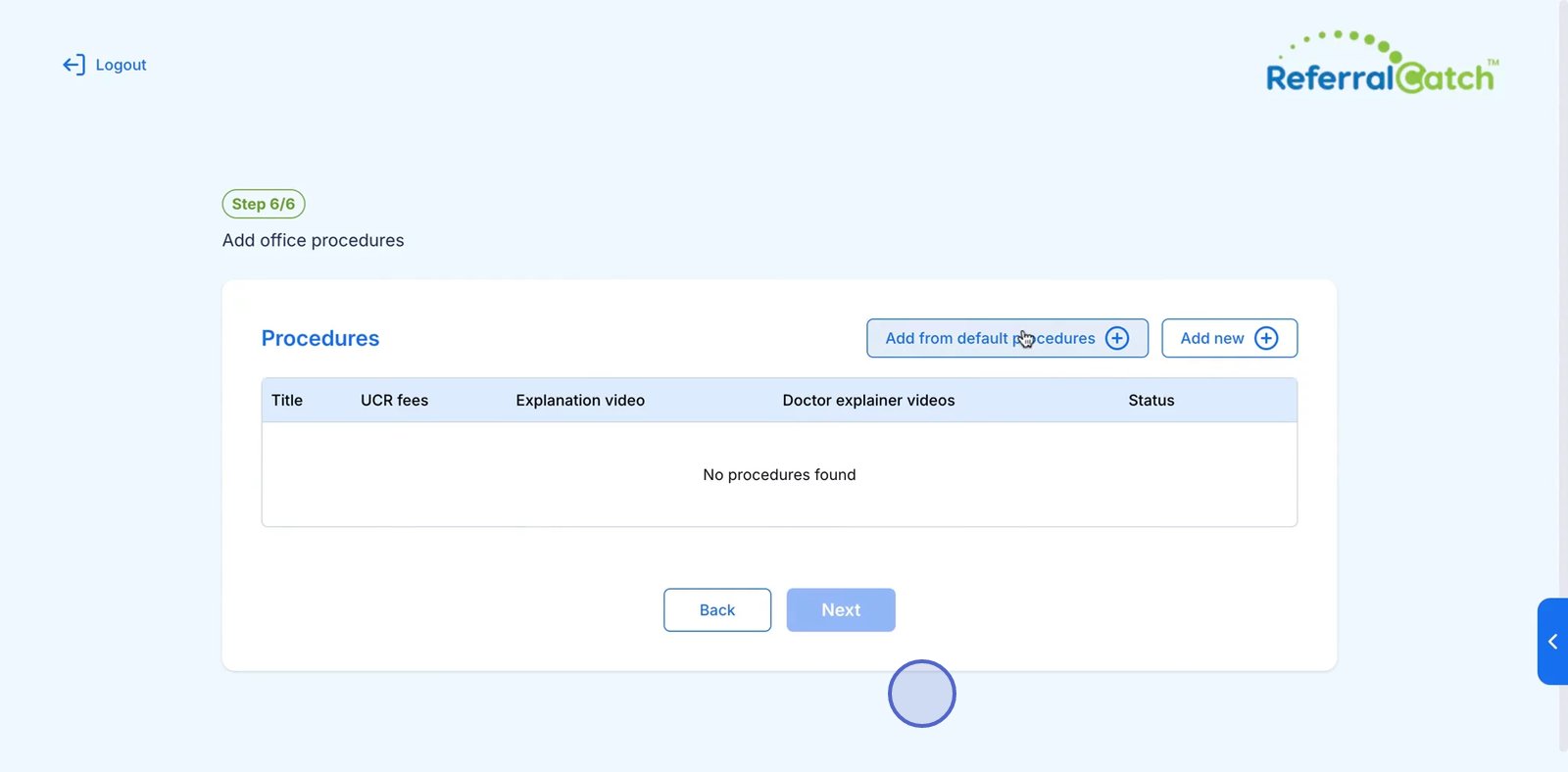
Click Next to finish setup.10
Sign In to Your Account
Your dental office account is now set up. Sign in with your email and password to access your ReferralCatch dashboard and start sending and receiving referrals.