> ## Documentation Index
> Fetch the complete documentation index at: https://help.referralcatch.com/llms.txt
> Use this file to discover all available pages before exploring further.
# Register a Dental Office Account
> Step-by-step guide to creating your dental office account in ReferralCatch, from entering your beta access code to completing your practice profile.
## Interactive Demo
Watch the full registration walkthrough in the interactive demo below, then follow the written steps if you need more detail.
***
## Step-by-Step Walkthrough
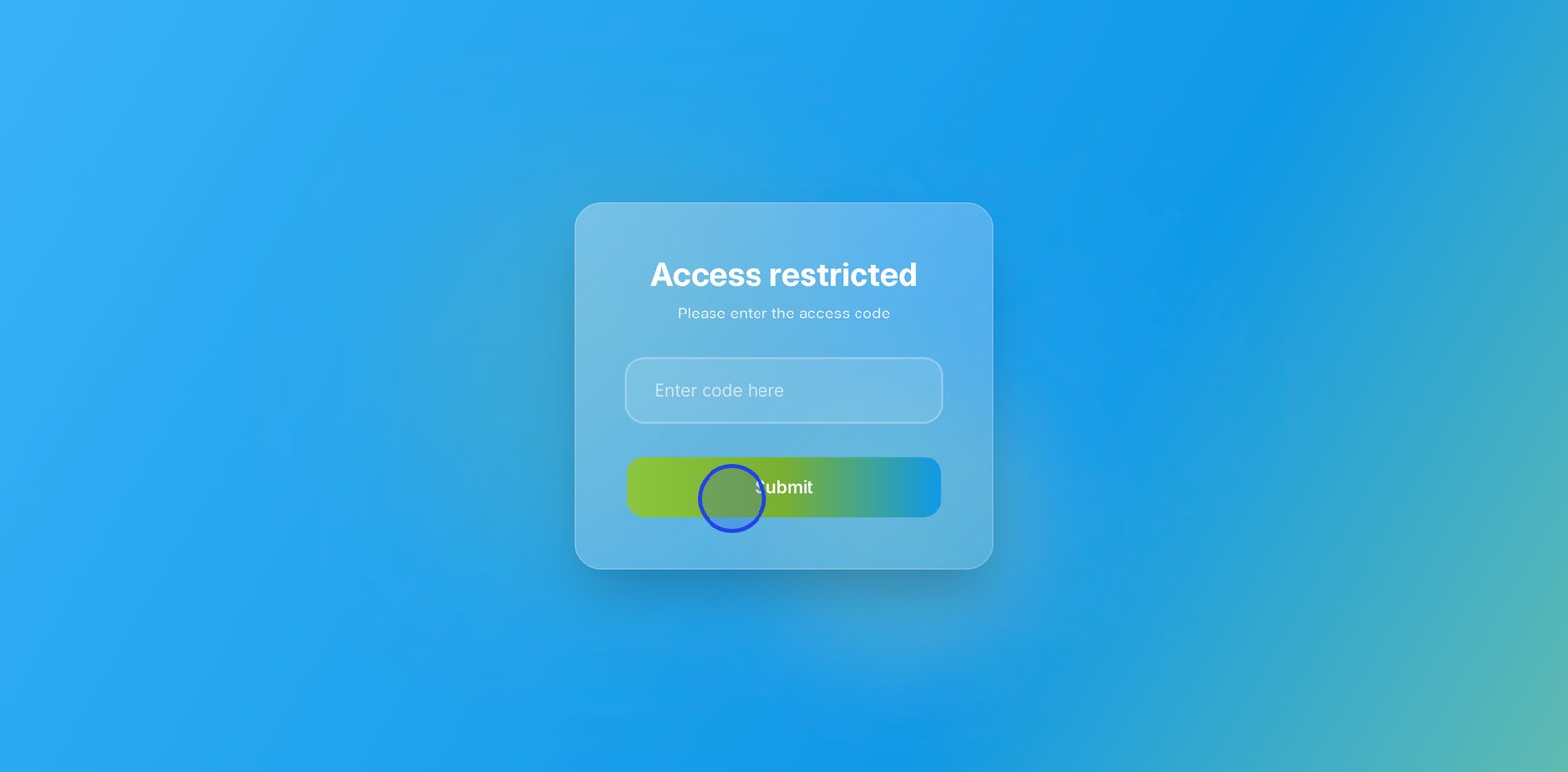
ReferralCatch is currently in beta. When you visit the app, you'll see an **Access restricted** screen. Enter the access code you received and click **Submit**.
 Don't have an access code? Visit [referralcatch.com](https://referralcatch.com) and click **Join Beta** to request one. See [How to Join the Beta](/getting-started/how-to-join-beta) for details.
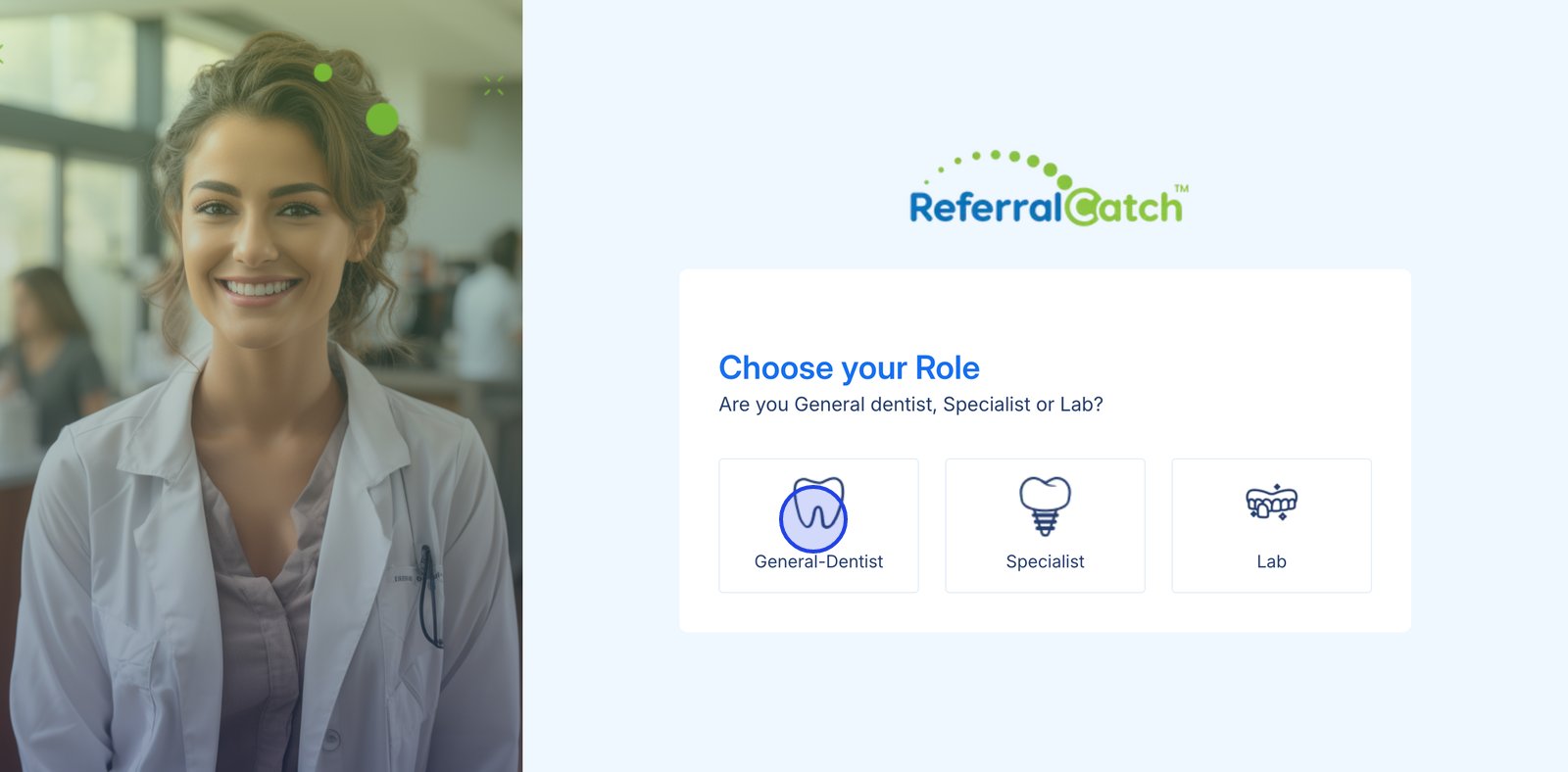
Select the role that best describes your practice. For a dental office registering as a referring practice, choose **General-Dentist**.
Don't have an access code? Visit [referralcatch.com](https://referralcatch.com) and click **Join Beta** to request one. See [How to Join the Beta](/getting-started/how-to-join-beta) for details.
Select the role that best describes your practice. For a dental office registering as a referring practice, choose **General-Dentist**.
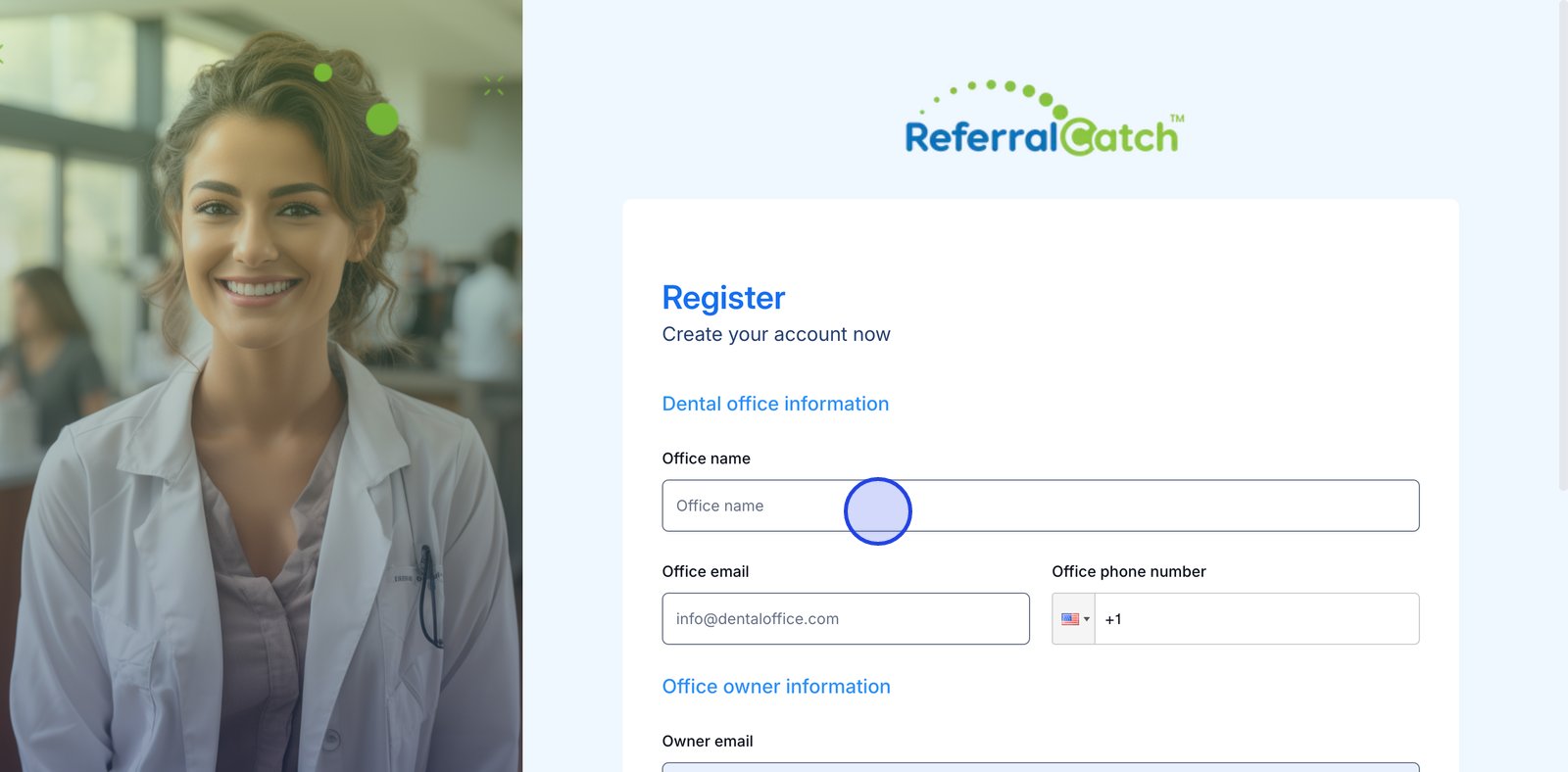
 Fill out the registration form with your practice details.
**Dental office information**
* Office name
* Office email
* Office phone number
**Office owner information**
* Owner email
* Password and confirm password
* Check the box to agree to the **Privacy Policy** and **Terms of Service**
Click **Register** when done.
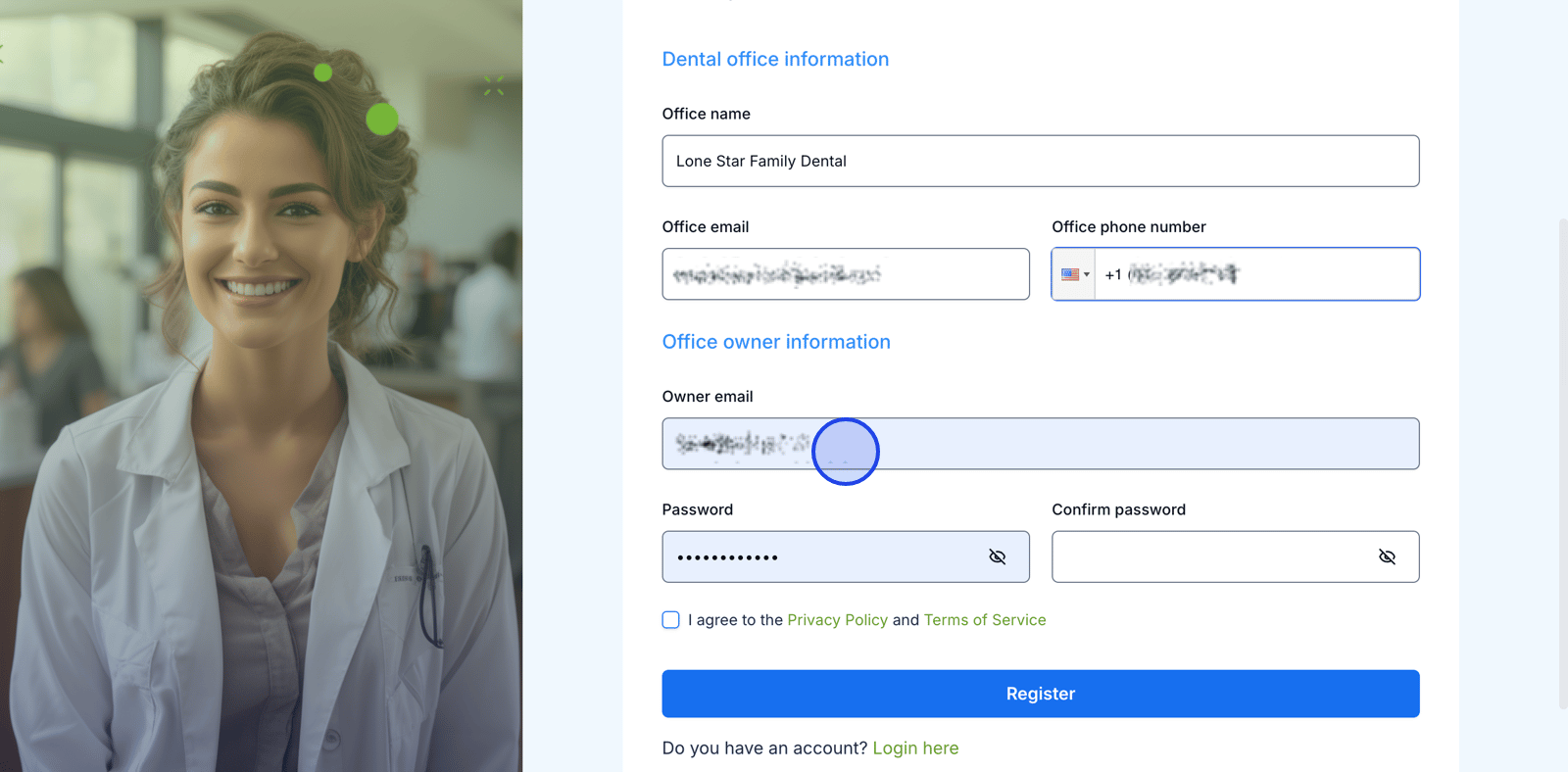
Fill out the registration form with your practice details.
**Dental office information**
* Office name
* Office email
* Office phone number
**Office owner information**
* Owner email
* Password and confirm password
* Check the box to agree to the **Privacy Policy** and **Terms of Service**
Click **Register** when done.
 Check your inbox for a 6-digit authentication code from ReferralCatch. Enter the code and click **Verify**.

 Didn't receive the code? Click **Resend code** on the authentication screen. Check your spam folder if it doesn't arrive within a few minutes.
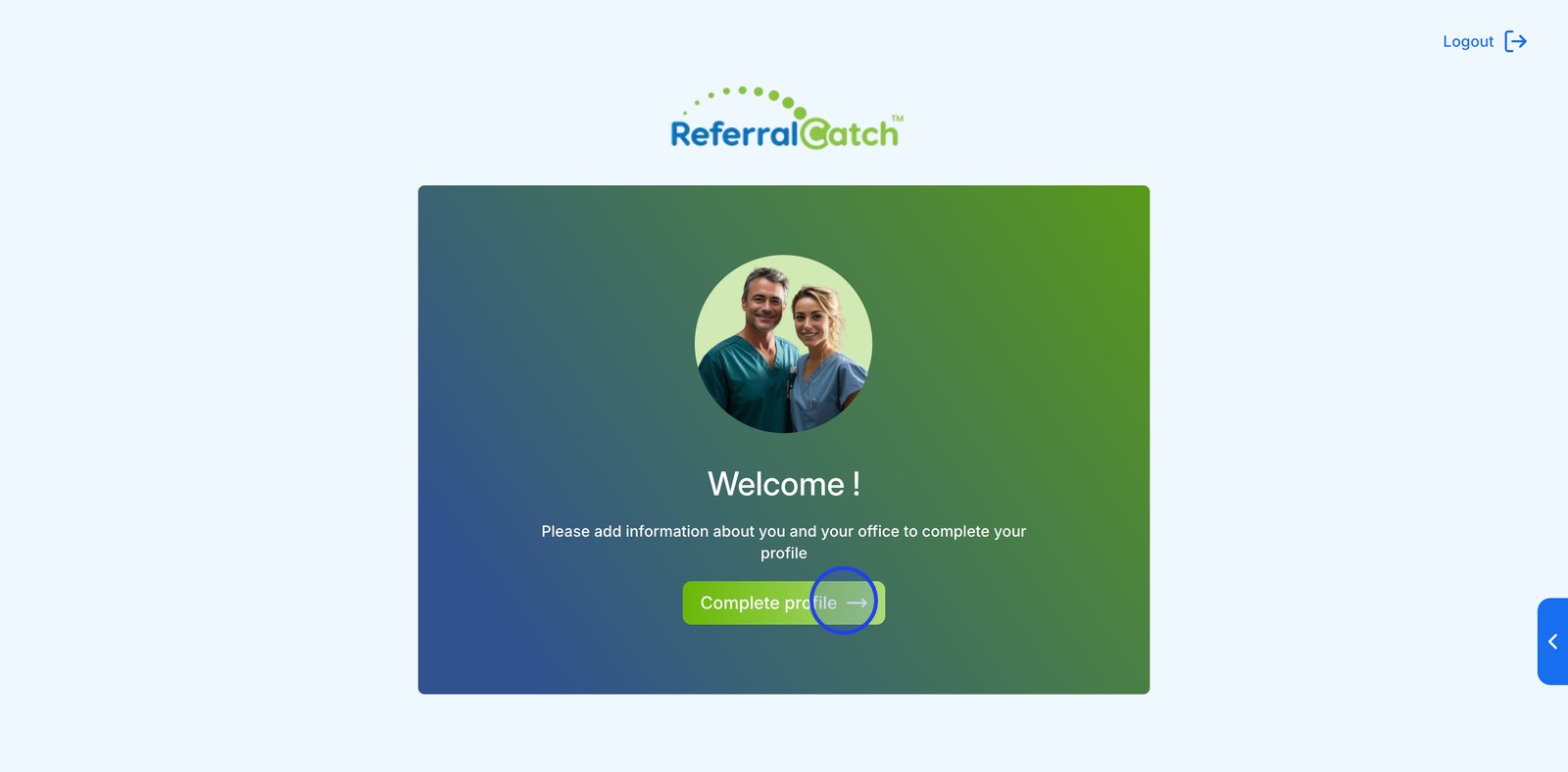
After verifying your email, you'll see a welcome screen. Click **Complete profile →** to begin setting up your practice profile.
Didn't receive the code? Click **Resend code** on the authentication screen. Check your spam folder if it doesn't arrive within a few minutes.
After verifying your email, you'll see a welcome screen. Click **Complete profile →** to begin setting up your practice profile.
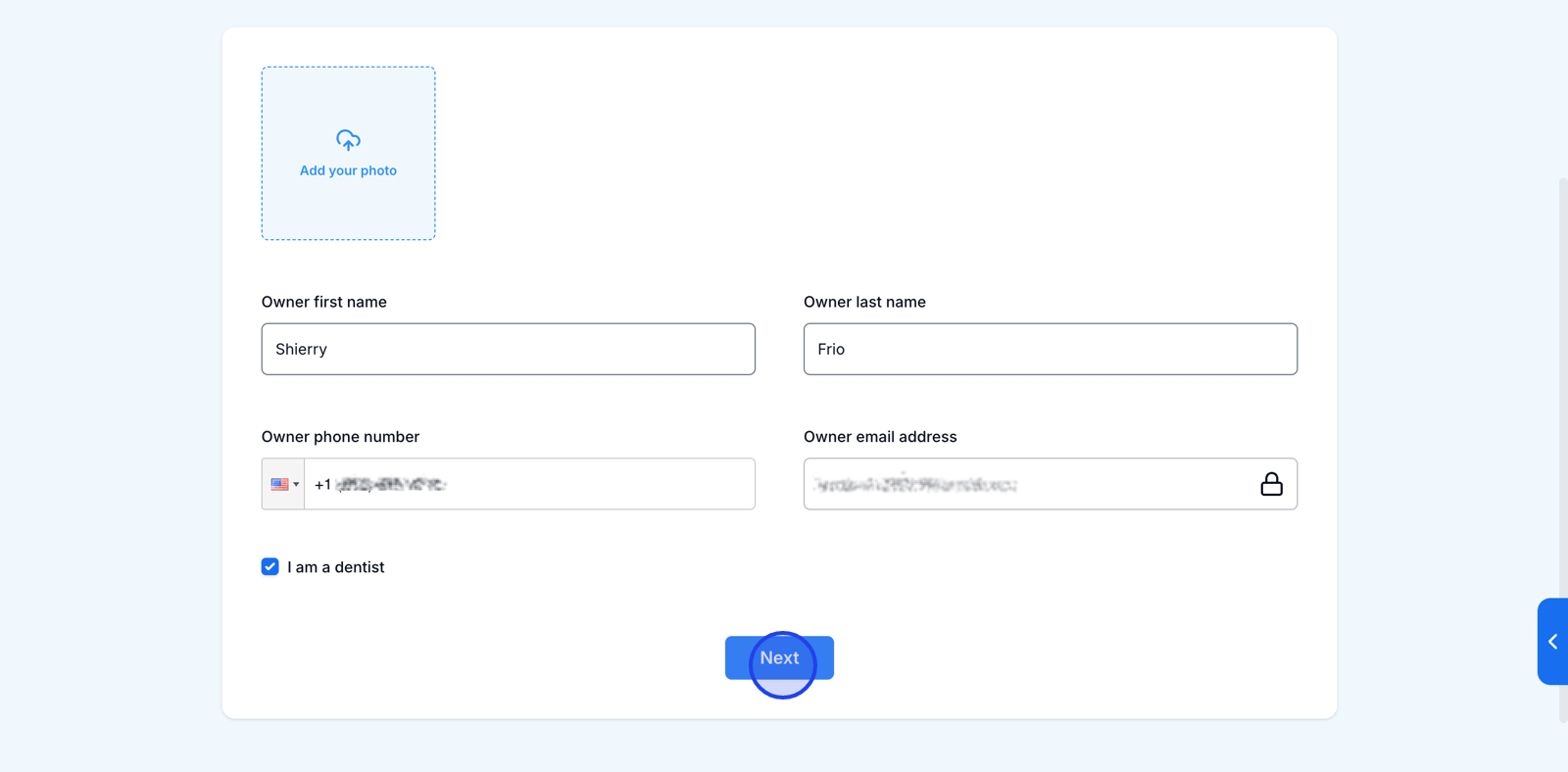
 Fill in the office owner's personal details:
* Click the **Add your photo** area to upload a profile photo (optional)
* First name and last name
* Phone number
* Your email address is pre-filled and locked to the one used during registration
* Check **I am a dentist** if applicable
Click **Next** to continue.
Fill in the office owner's personal details:
* Click the **Add your photo** area to upload a profile photo (optional)
* First name and last name
* Phone number
* Your email address is pre-filled and locked to the one used during registration
* Check **I am a dentist** if applicable
Click **Next** to continue.
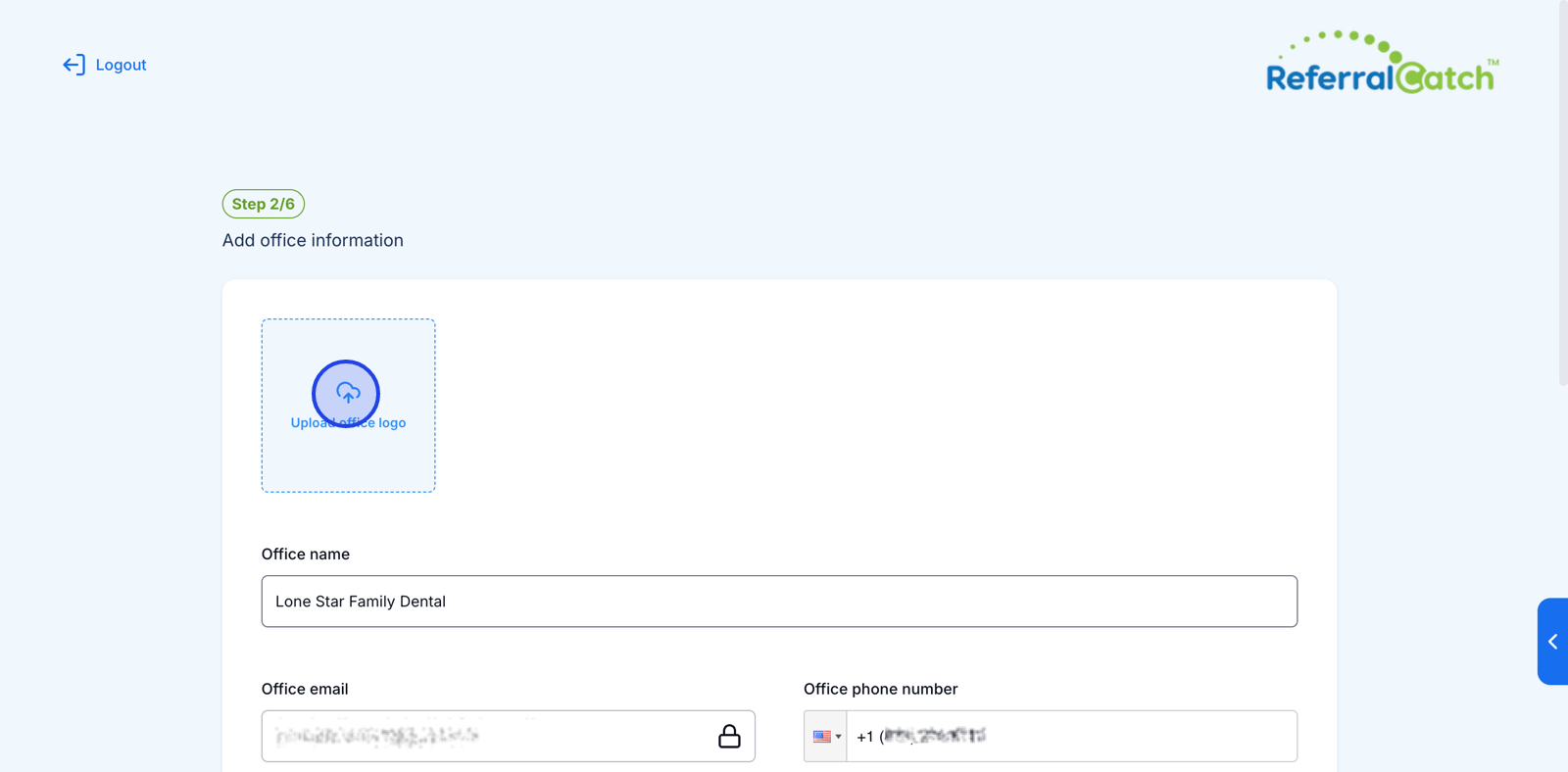
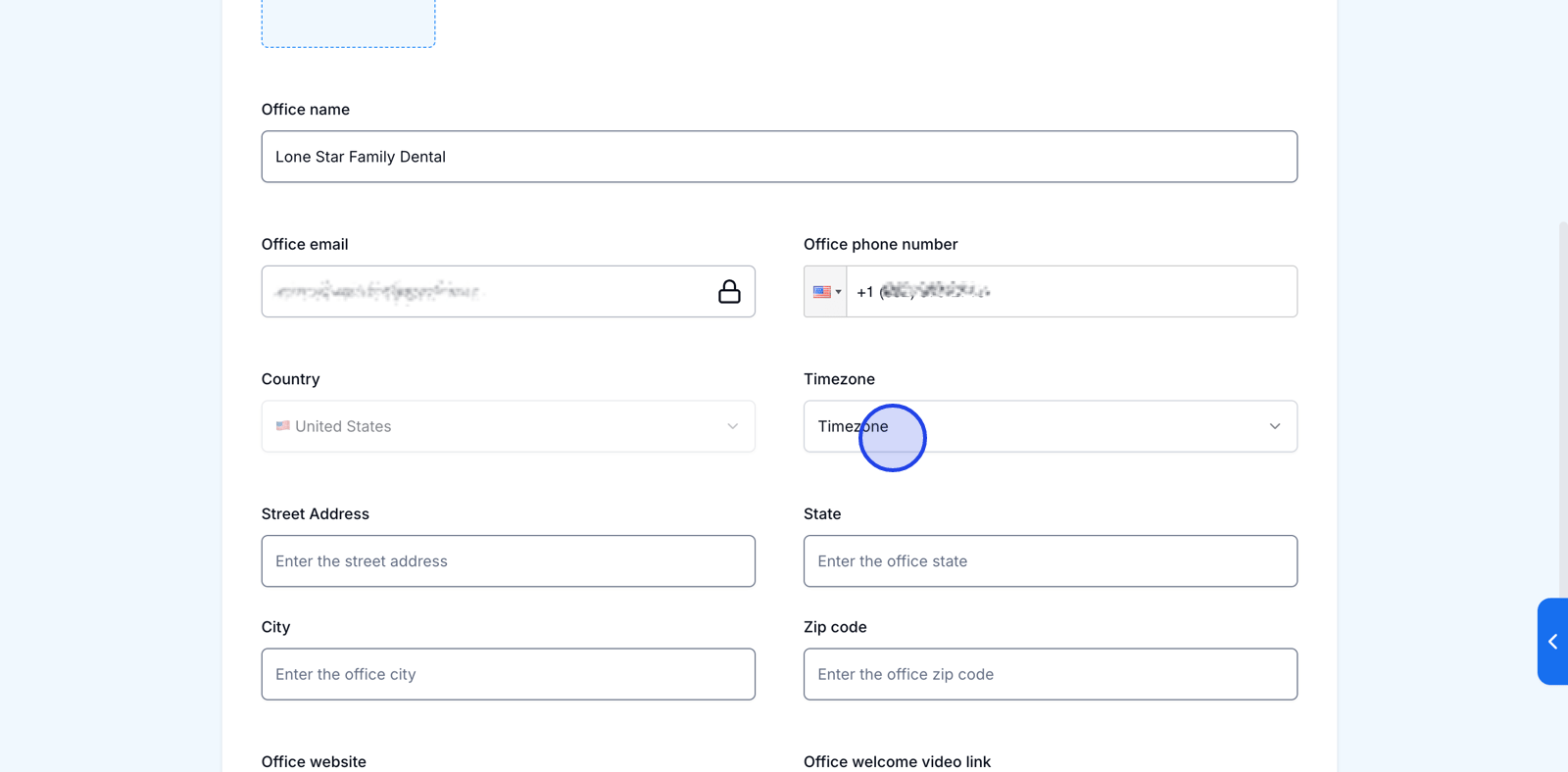
 Fill in your practice's office details. Start by clicking the **Upload office logo** area to add your practice logo.
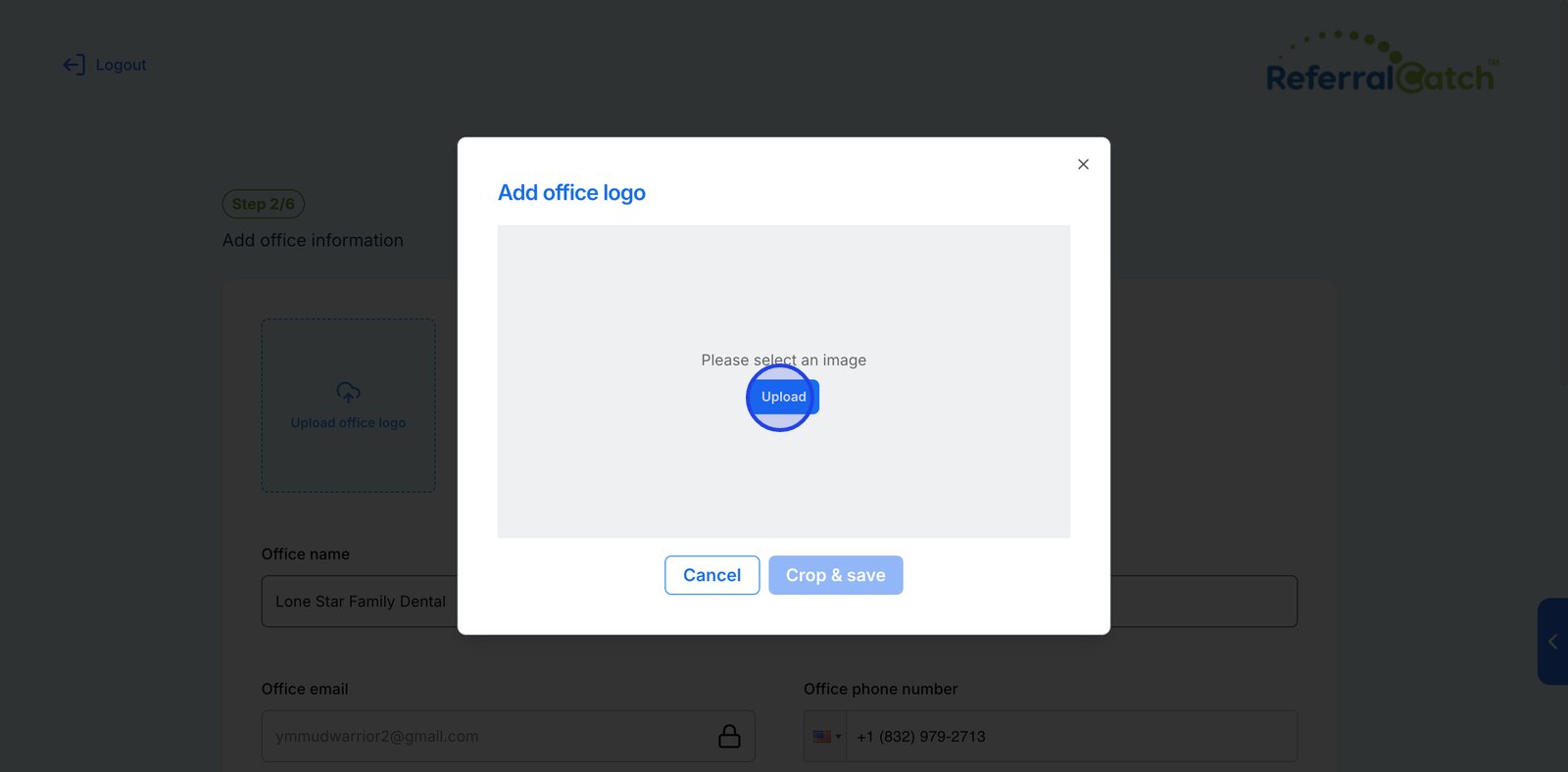
 A dialog will open — click **Upload** to select an image file, then click **Crop & save**.
 Scroll down to complete the remaining fields:
* Country and Timezone
* Street address, State, City, Zip code
* Office website
* Office welcome video link (optional)
Scroll down to complete the remaining fields:
* Country and Timezone
* Street address, State, City, Zip code
* Office website
* Office welcome video link (optional)
 Click **Next** when finished.
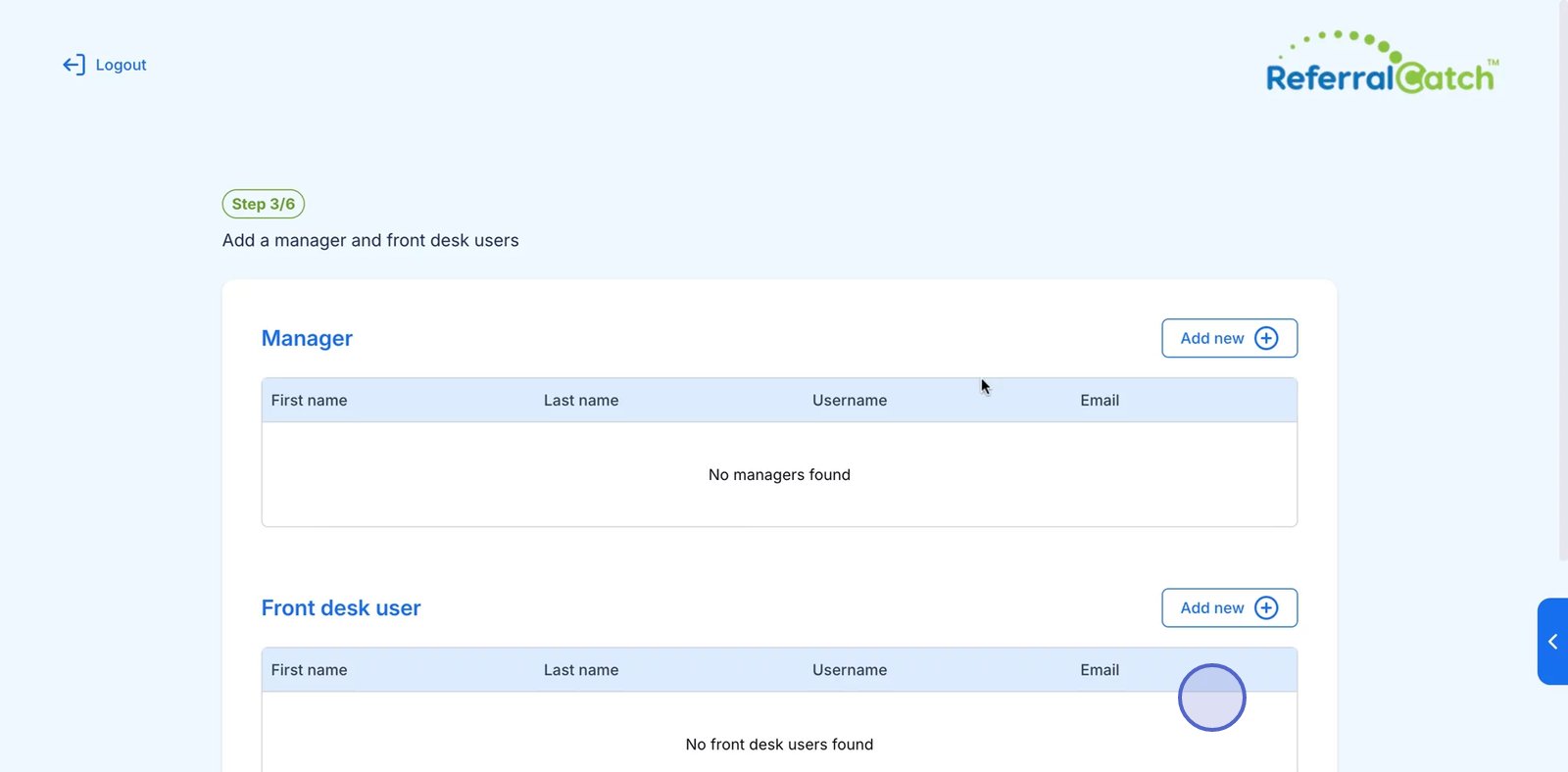
Add your office staff by clicking **Add new +** under the **Manager** or **Front desk user** section. You'll enter each team member's name, username, and email.
Click **Next** when finished.
Add your office staff by clicking **Add new +** under the **Manager** or **Front desk user** section. You'll enter each team member's name, username, and email.
 You can skip this step now and add team members later from your account settings.
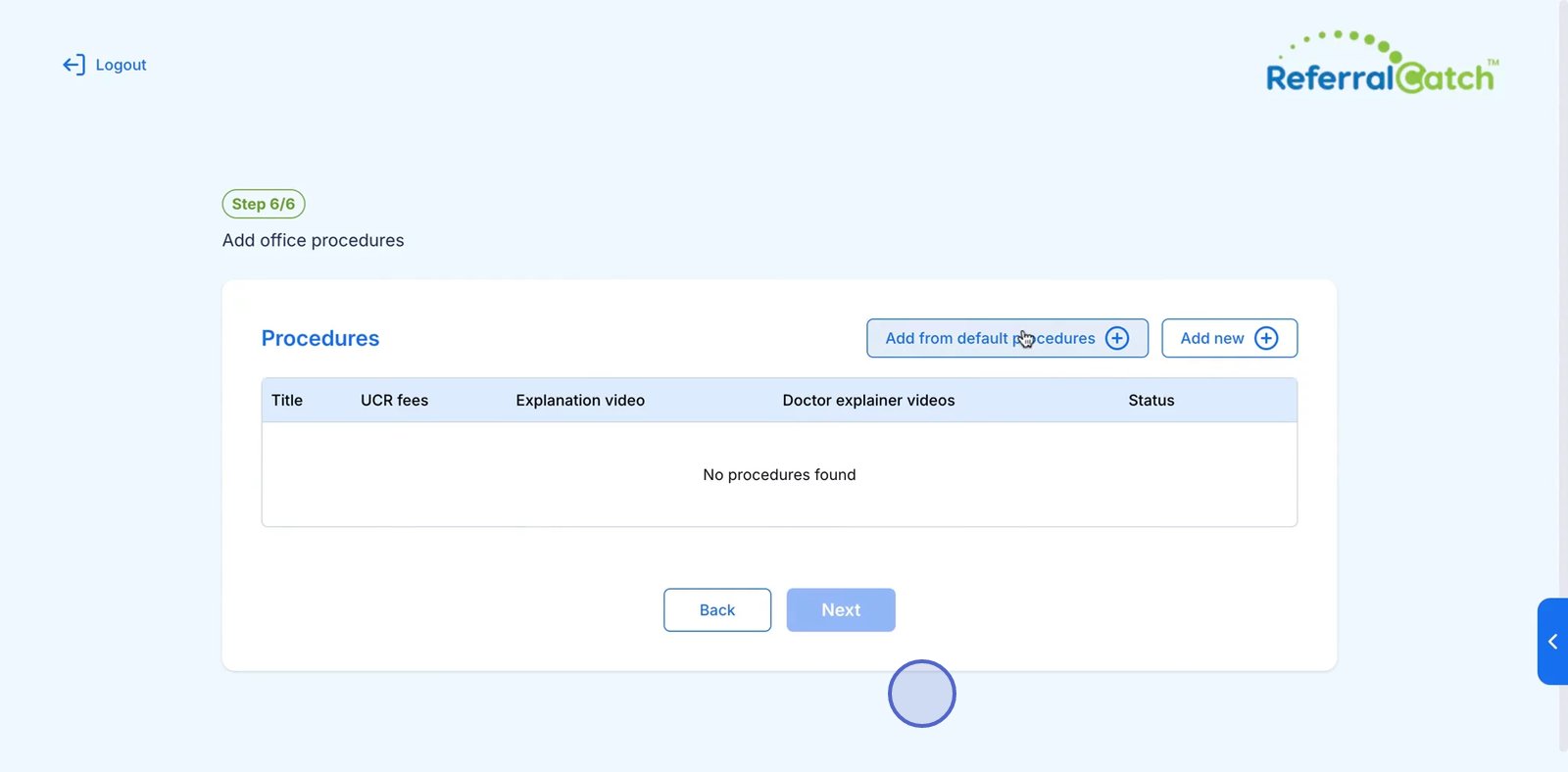
Add the dental procedures your office offers. You have two options:
* **Add from default procedures** — select from a pre-built list of common dental procedures
* **Add new +** — manually add a custom procedure
You can skip this step now and add team members later from your account settings.
Add the dental procedures your office offers. You have two options:
* **Add from default procedures** — select from a pre-built list of common dental procedures
* **Add new +** — manually add a custom procedure
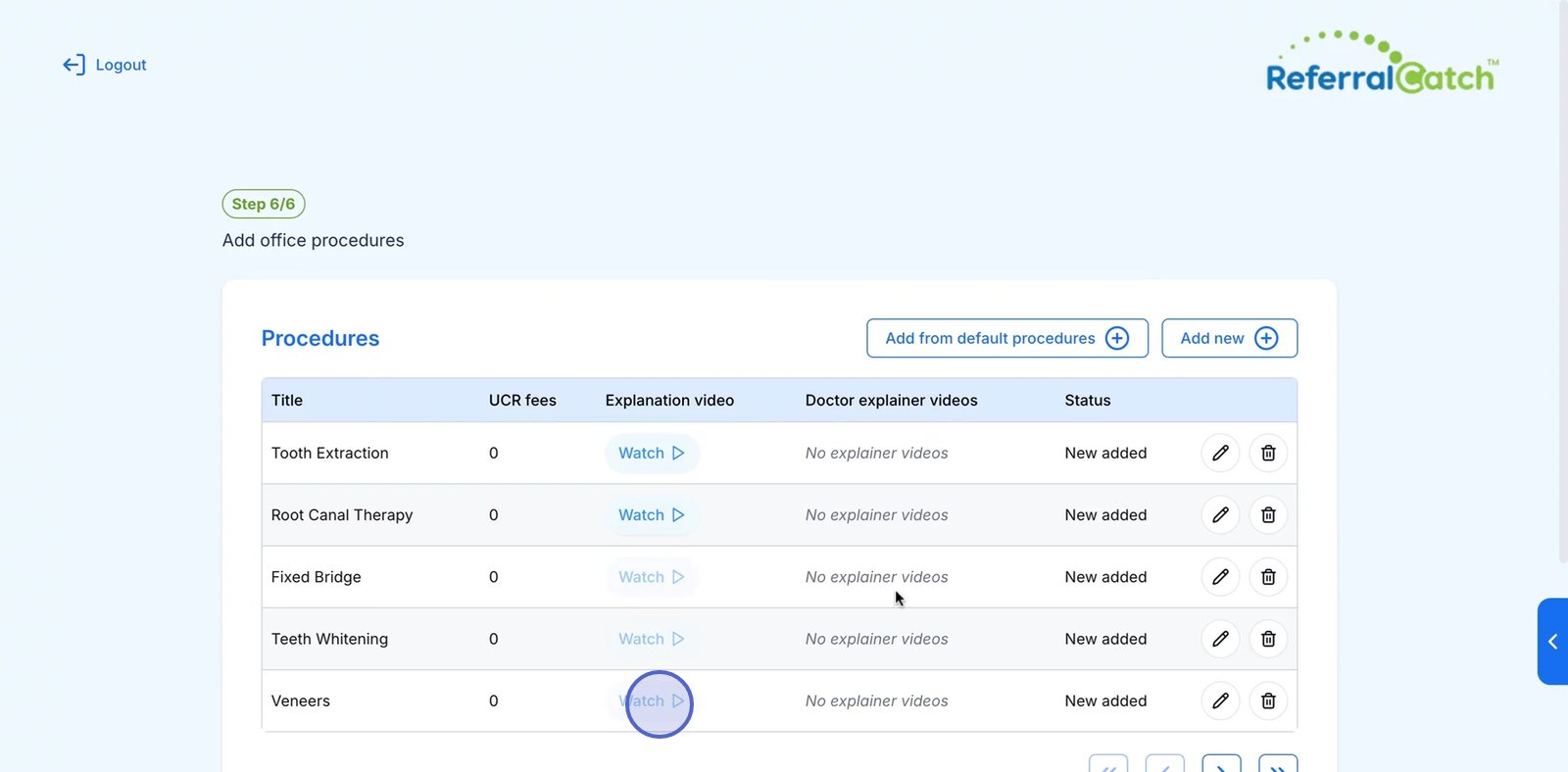
 Once added, your procedures will appear in the table with columns for Title, UCR fees, Explanation video, Doctor explainer videos, and Status.
 Click **Next** to finish setup.
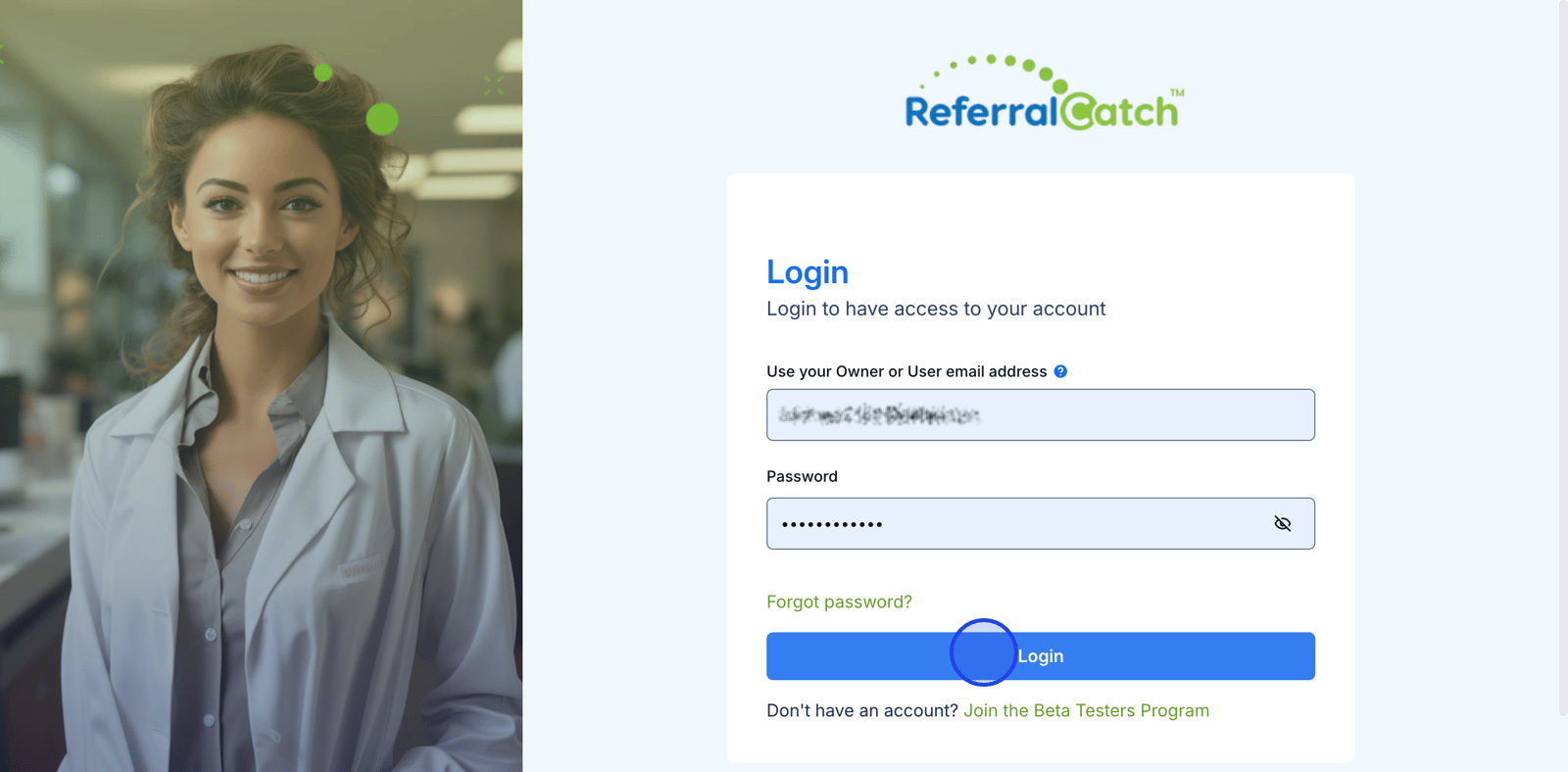
Your dental office account is now set up. Sign in with your email and password to access your ReferralCatch dashboard and start sending and receiving referrals.
Click **Next** to finish setup.
Your dental office account is now set up. Sign in with your email and password to access your ReferralCatch dashboard and start sending and receiving referrals.
 ***
## Need Help?
If you run into any issues during registration, email us at [info@referralcatch.com](mailto:info@referralcatch.com) and we'll get you sorted out quickly.
***
## Need Help?
If you run into any issues during registration, email us at [info@referralcatch.com](mailto:info@referralcatch.com) and we'll get you sorted out quickly.