> ## Documentation Index
> Fetch the complete documentation index at: https://help.referralcatch.com/llms.txt
> Use this file to discover all available pages before exploring further.
# Send a Referral to a Specialist
> Learn how to send a patient referral from your general dentist dashboard — choose a specialist, verify the patient, add clinical details, and submit in minutes.
## Interactive Demo
Watch the full referral walkthrough, then follow the written steps below if you need more detail on any screen.
***
## Step-by-Step Walkthrough
Click the **New referral** button in the upper-right corner of the ReferralCatch page.
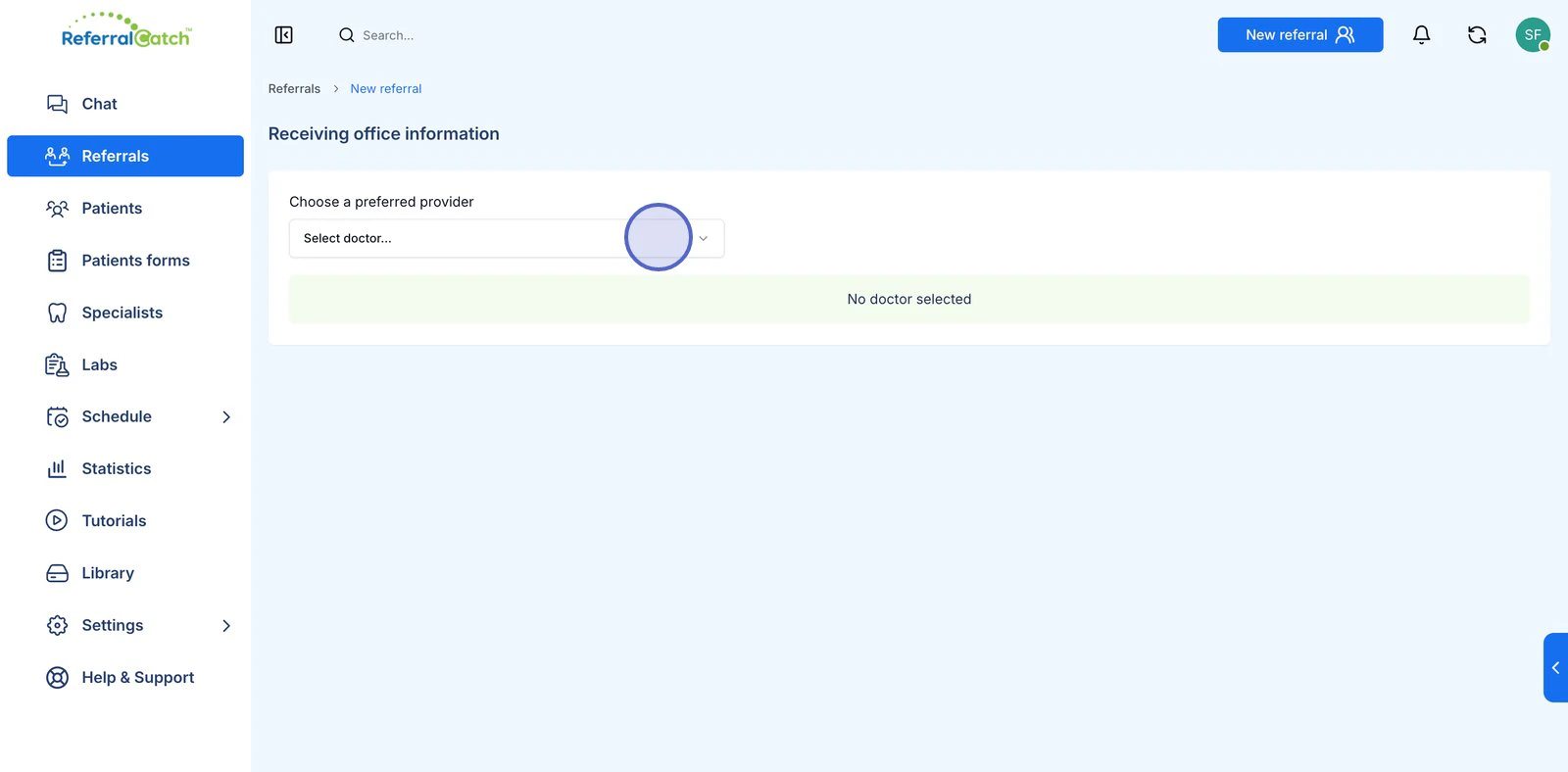
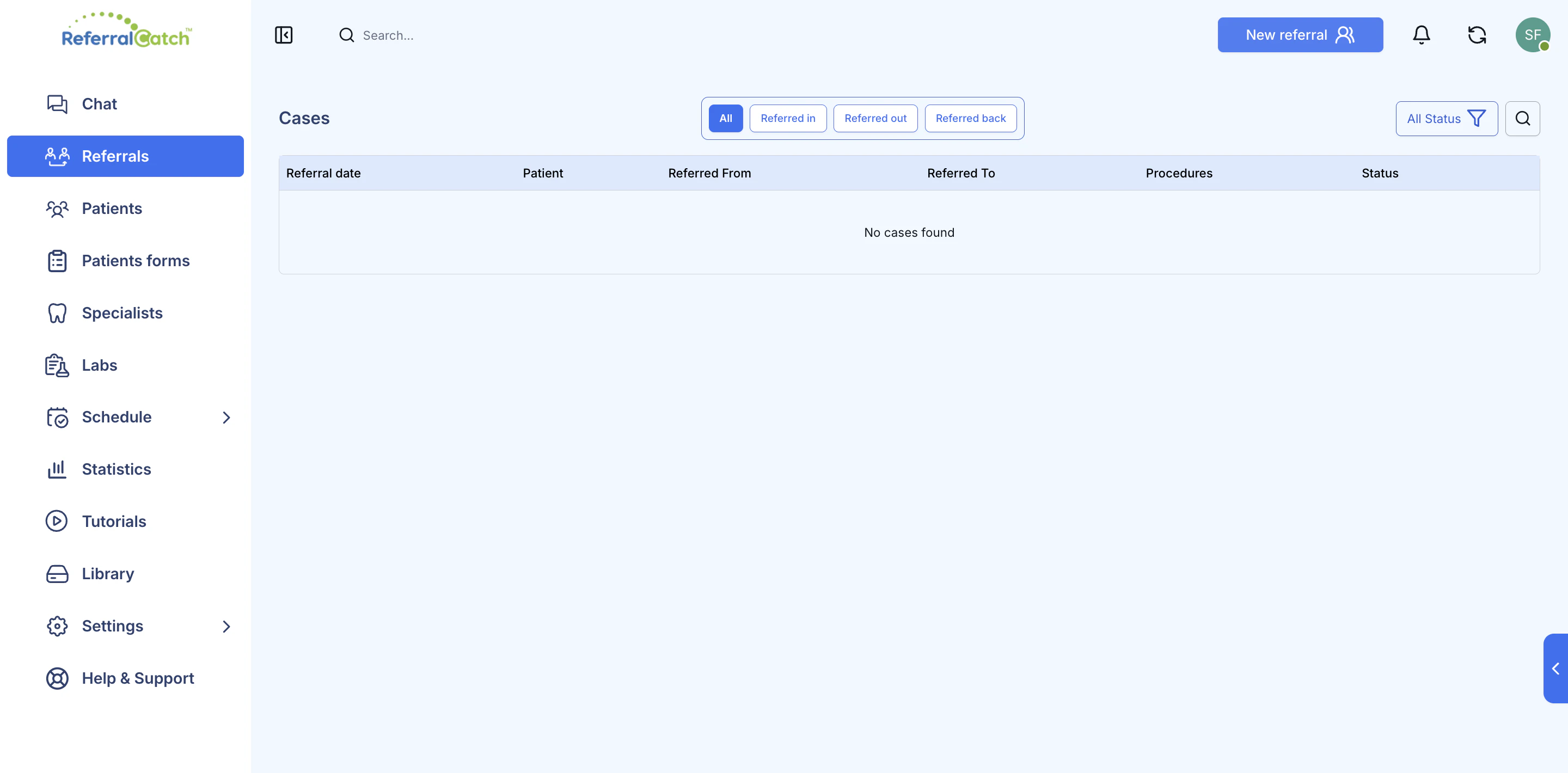 You'll land on the **Receiving office information** screen. Click the **Select doctor...** dropdown and start typing the specialist's name.
 Search results show the doctor's name, specialty, practice, and their current availability status.
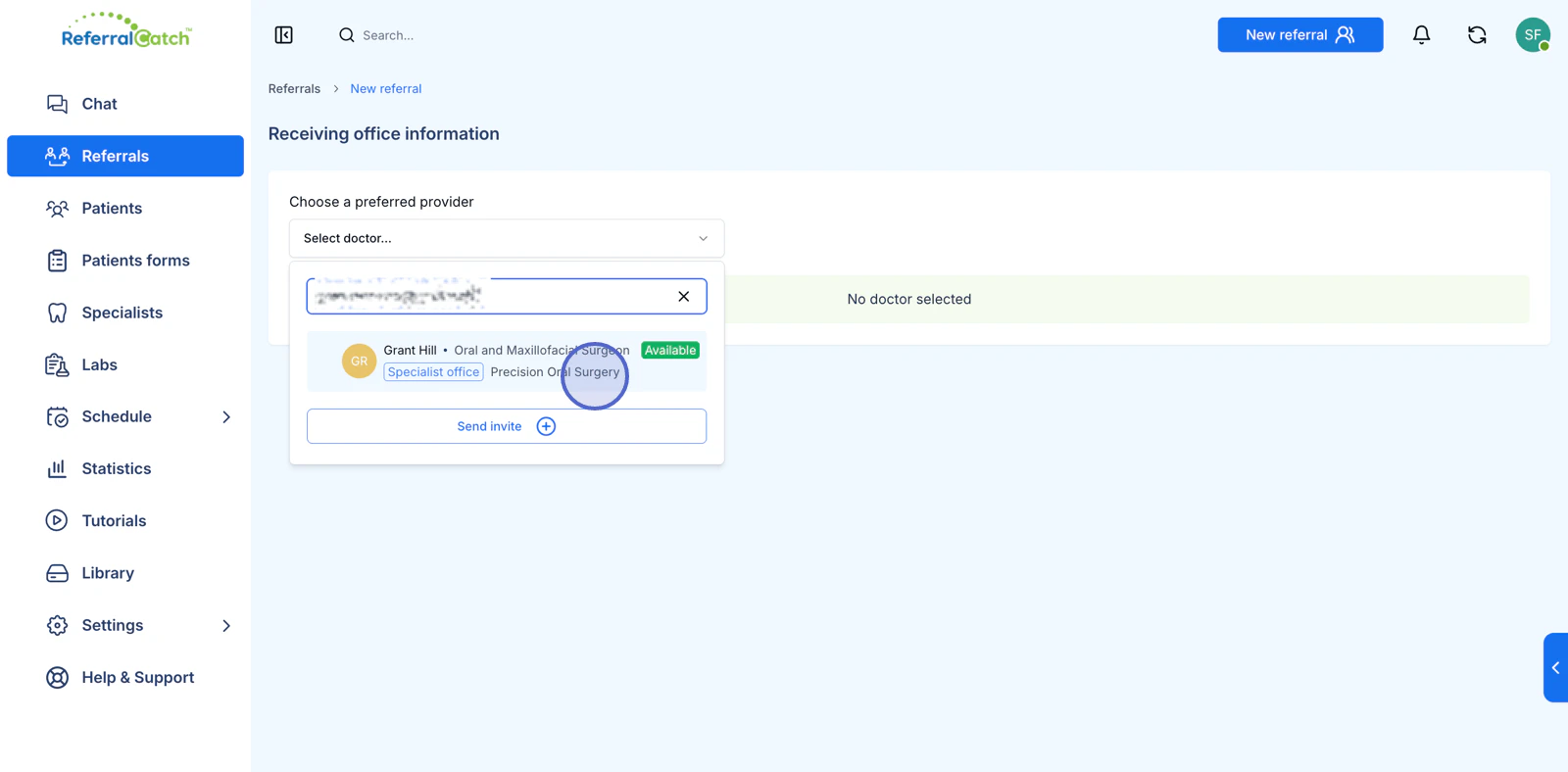 Click the specialist's card to select them.
Don't see your specialist in the list? Click **Send invite** at the bottom of the dropdown to invite them to join ReferralCatch. Once they accept, they'll appear in your network for future referrals.
Click the specialist's card to select them.
Don't see your specialist in the list? Click **Send invite** at the bottom of the dropdown to invite them to join ReferralCatch. Once they accept, they'll appear in your network for future referrals.
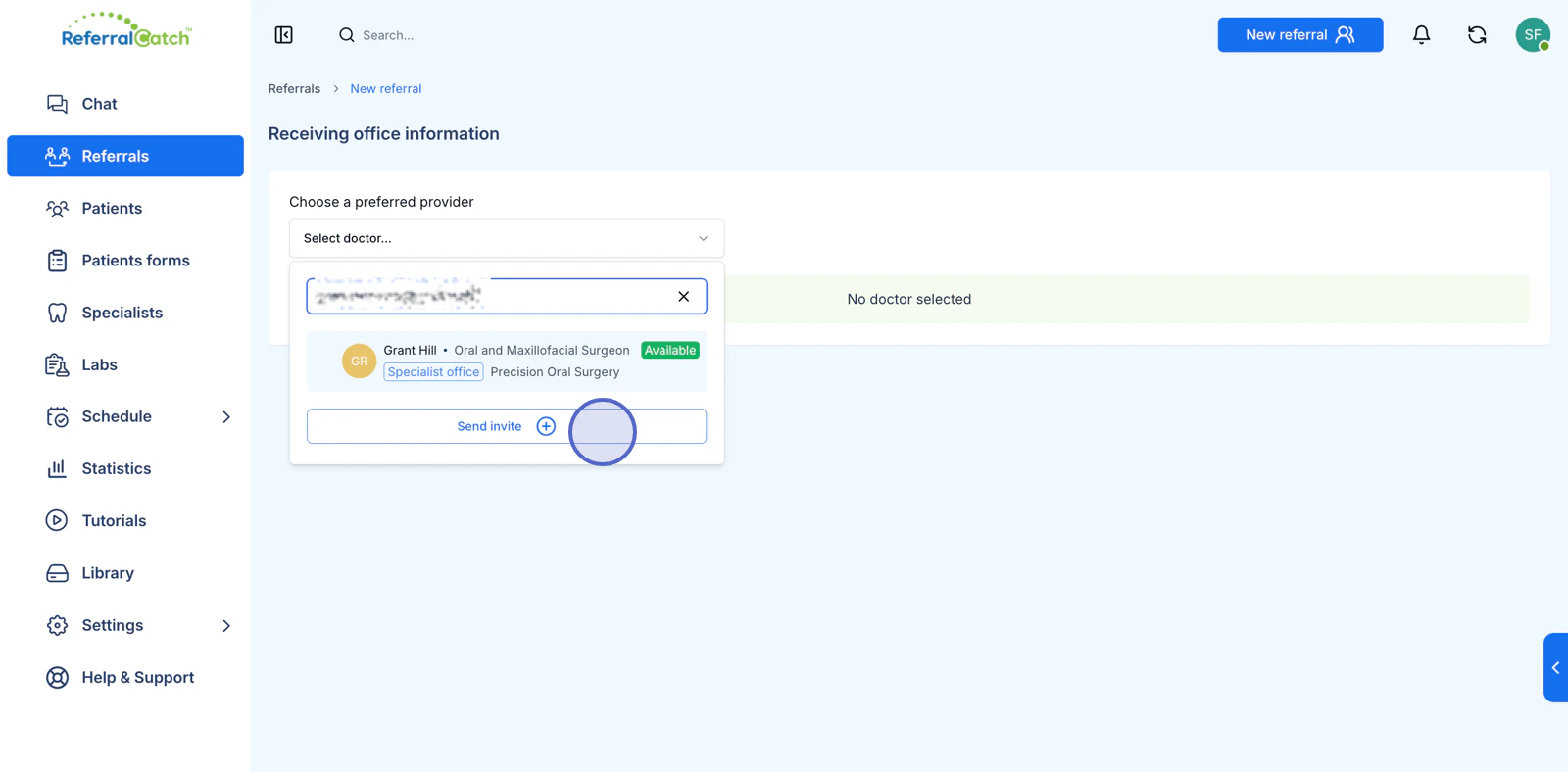 After selecting, the specialist's profile card appears below the dropdown confirming your choice — including their name, specialty, practice, and availability.
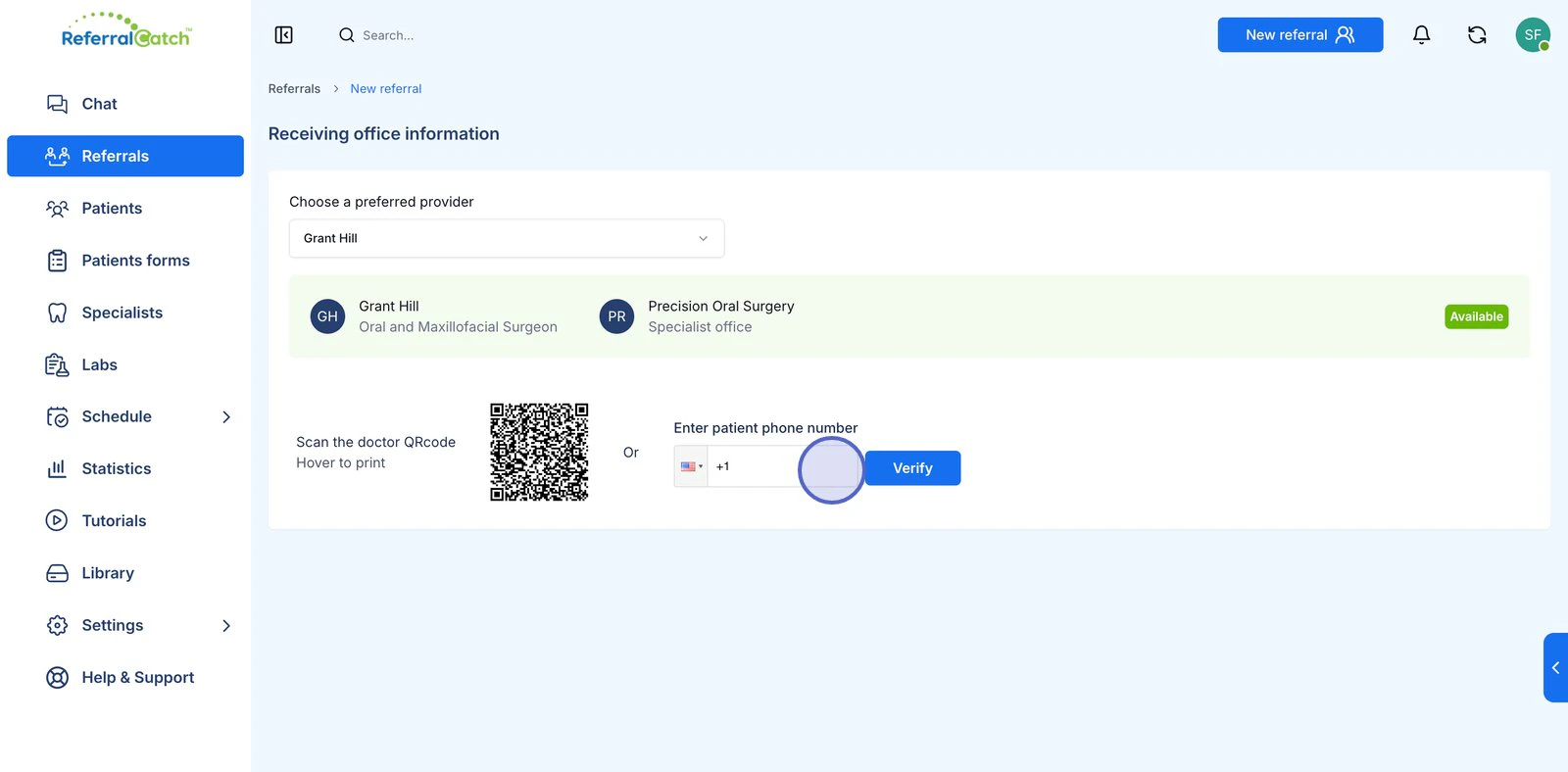 Before entering patient details, ReferralCatch verifies the patient's identity. You have two options:
| Option | How it works |
| ---------------- | -------------------------------------------------------------------------------------------- |
| **QR code** | Hover over the QR code to print it. The patient scans it on their phone to self-verify. |
| **Phone number** | Enter the patient's mobile number and click **Verify**. They receive a 6-digit code by text. |
Before entering patient details, ReferralCatch verifies the patient's identity. You have two options:
| Option | How it works |
| ---------------- | -------------------------------------------------------------------------------------------- |
| **QR code** | Hover over the QR code to print it. The patient scans it on their phone to self-verify. |
| **Phone number** | Enter the patient's mobile number and click **Verify**. They receive a 6-digit code by text. |
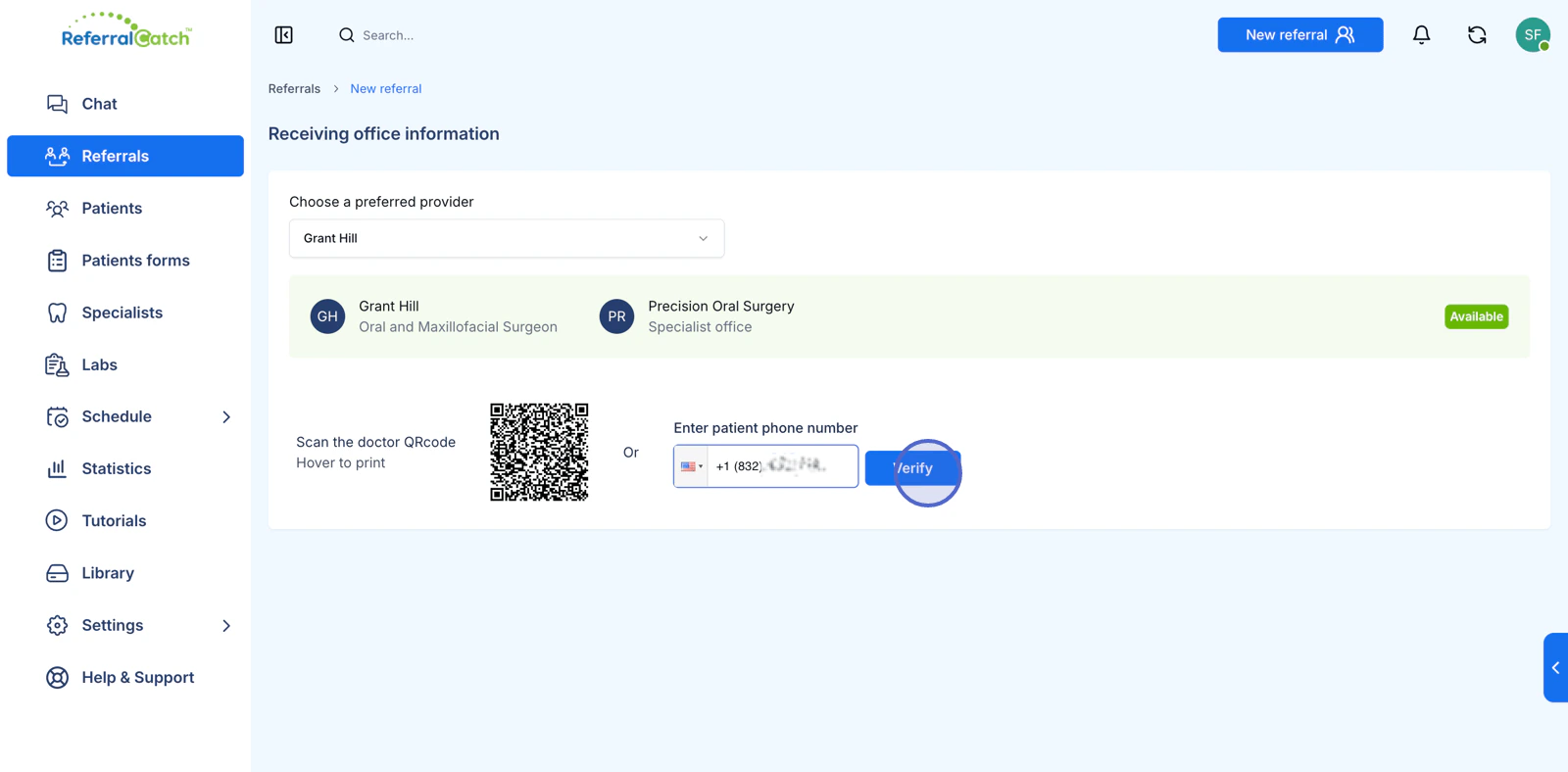 A verification dialog appears. Ask the patient to read you the code from their phone, then enter it in the six boxes.
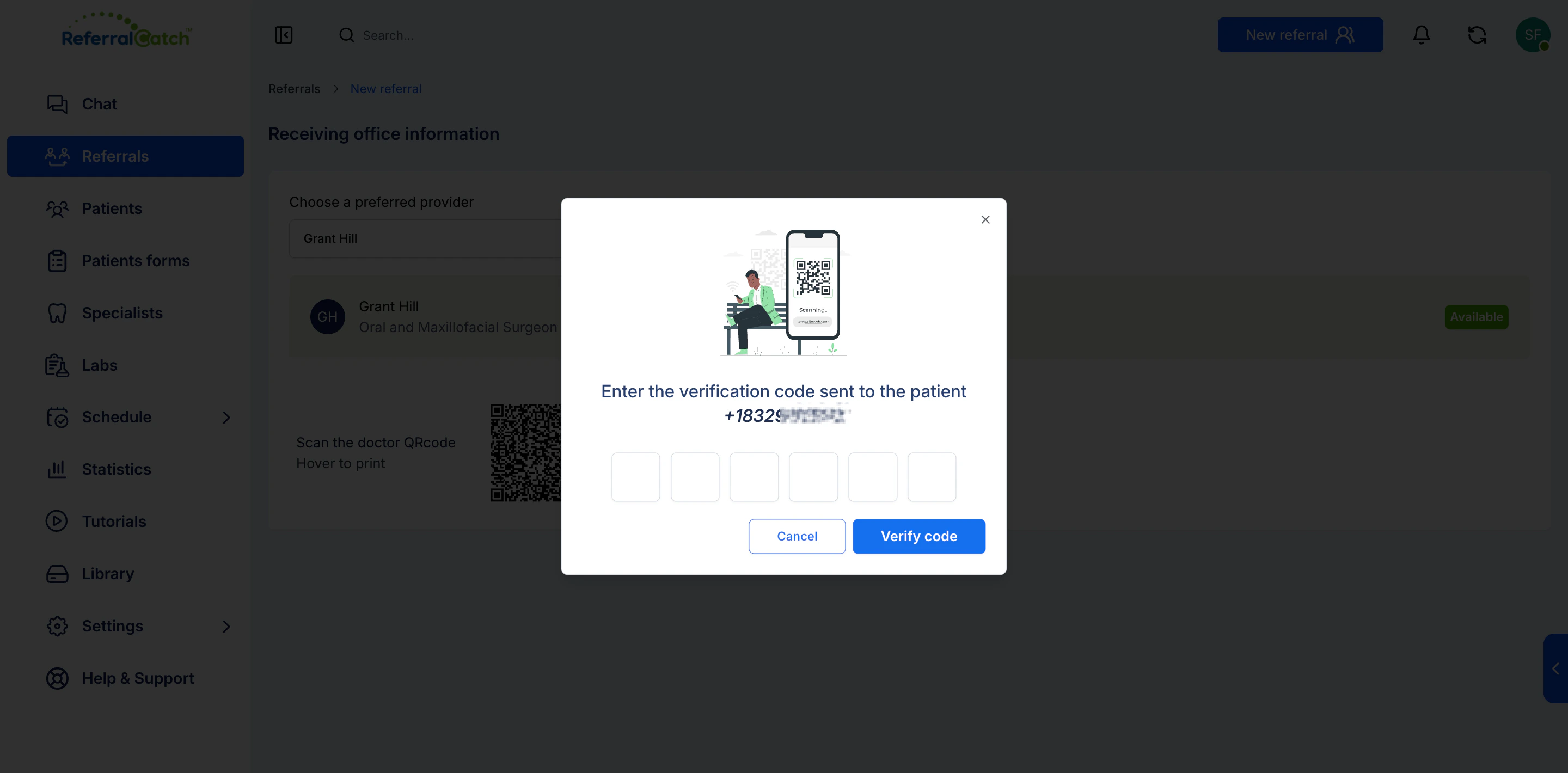
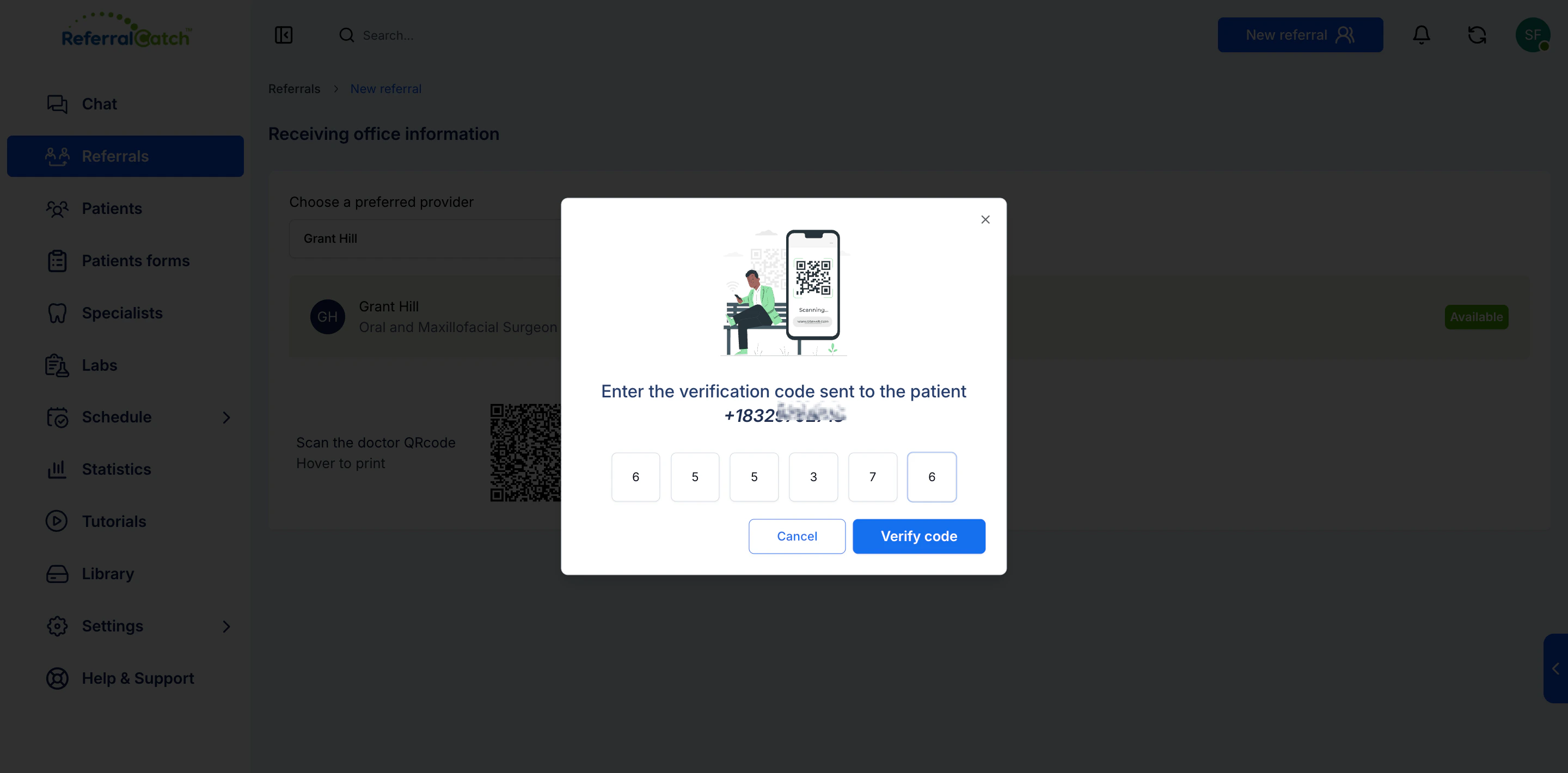 Click **Verify code** to proceed to patient information.
The **Patient information** screen lets you enter all clinical details for this referral. The referring doctor and preferred provider are shown at the top — use the dropdowns on the right to change either one if needed.
Click **Verify code** to proceed to patient information.
The **Patient information** screen lets you enter all clinical details for this referral. The referring doctor and preferred provider are shown at the top — use the dropdowns on the right to change either one if needed.
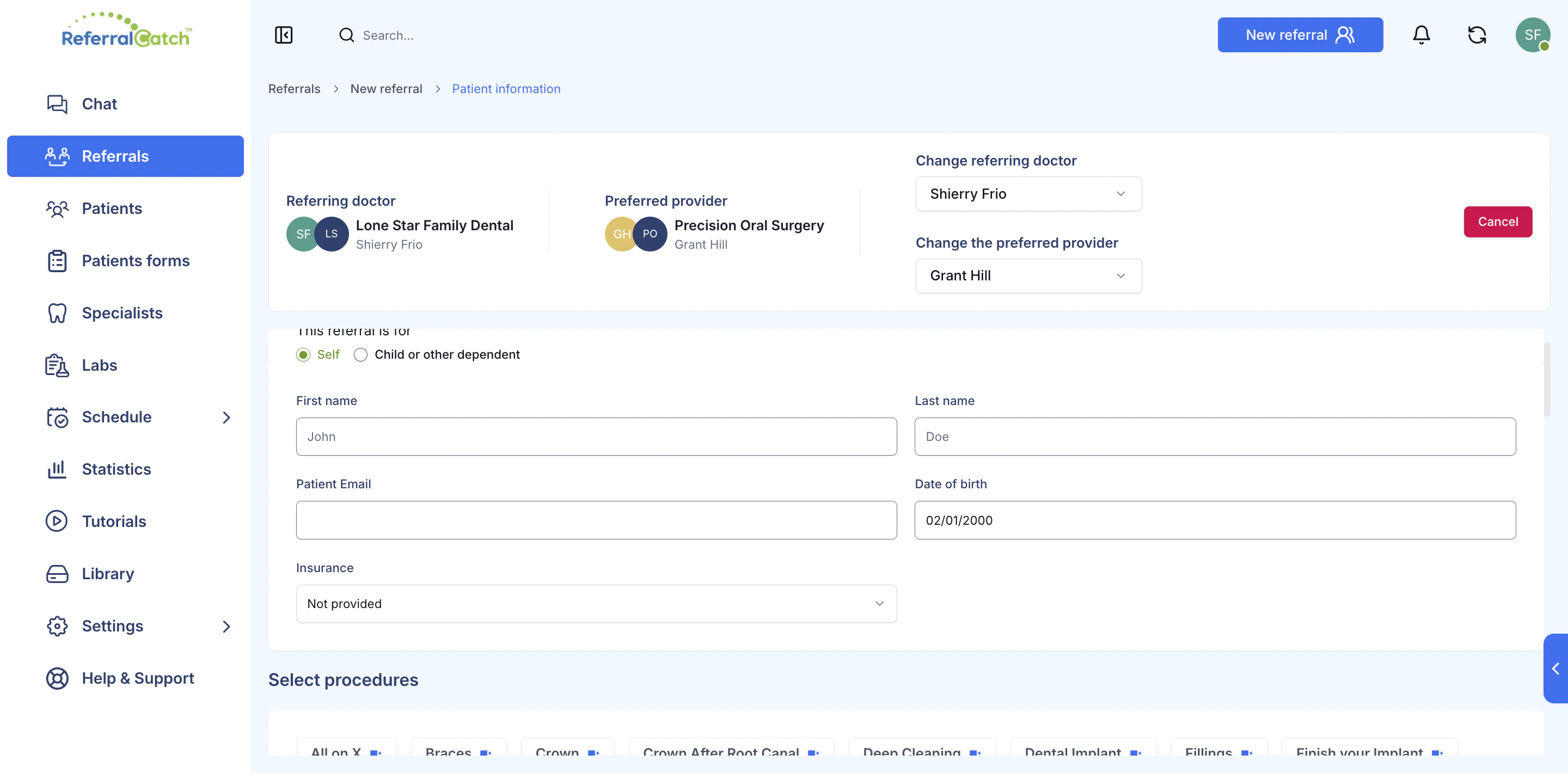 Complete the patient details:
| Field | Notes |
| ---------------------- | --------------------------------------------------------- |
| This referral is for | **Self** for the patient, or **Child or other dependent** |
| First name / Last name | Patient's legal name |
| Patient email | Optional — used for patient-facing notifications |
| Date of birth | Use the calendar picker |
| Insurance | Select from the dropdown, or leave as **Not provided** |
Complete the patient details:
| Field | Notes |
| ---------------------- | --------------------------------------------------------- |
| This referral is for | **Self** for the patient, or **Child or other dependent** |
| First name / Last name | Patient's legal name |
| Patient email | Optional — used for patient-facing notifications |
| Date of birth | Use the calendar picker |
| Insurance | Select from the dropdown, or leave as **Not provided** |
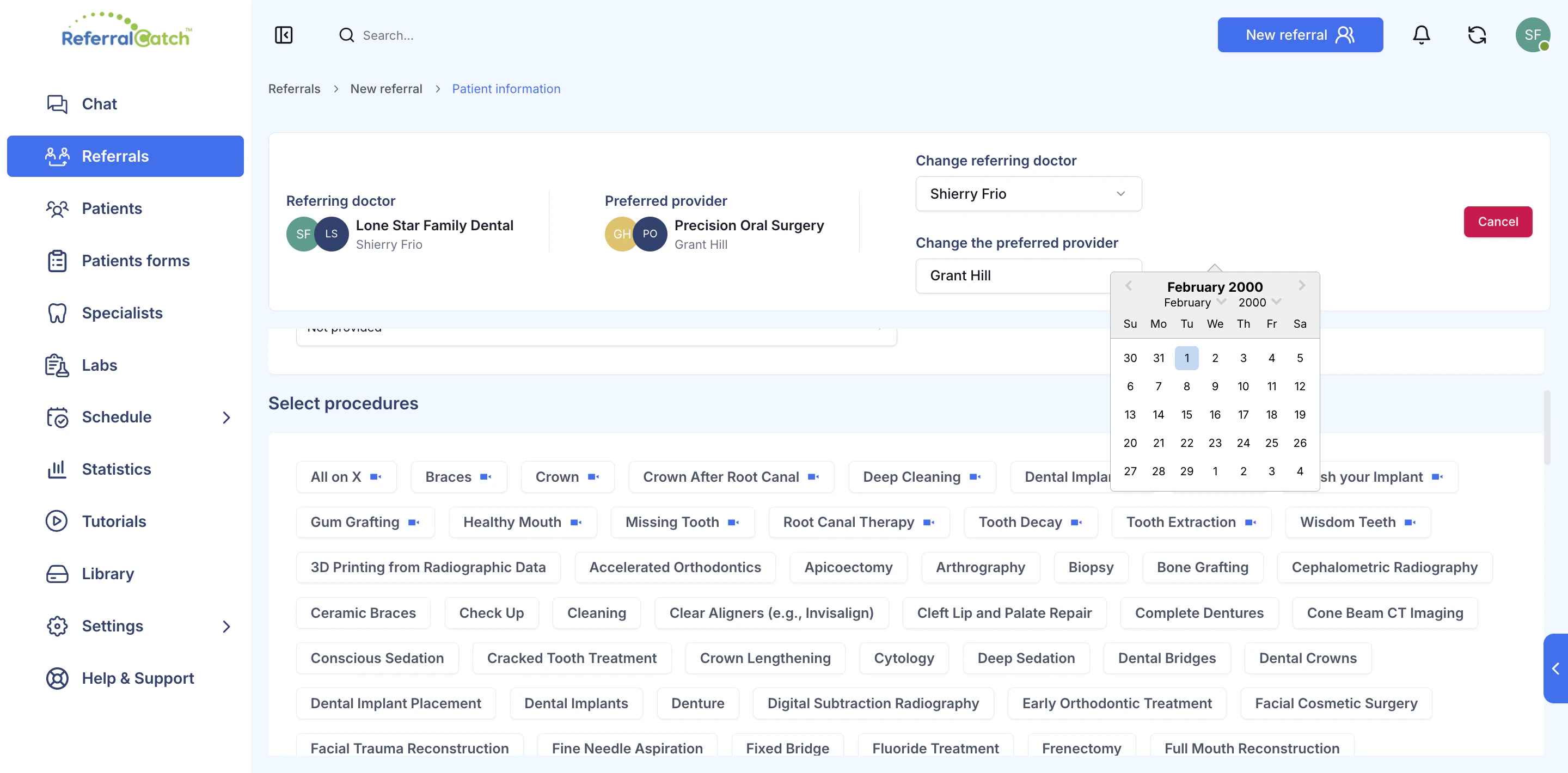 ### Select Procedures
Below the patient fields, click any procedure tag to add it to the referral. You can select multiple procedures. The list includes common procedures (Braces, Crown, Deep Cleaning, Fillings) as well as specialized ones (Bone Grafting, Cone Beam CT Imaging, Root Canal Therapy, Wisdom Teeth, and many more).
Scroll down to attach clinical media and mark which teeth are involved.
### X-rays and intra-oral photographs
### Select Procedures
Below the patient fields, click any procedure tag to add it to the referral. You can select multiple procedures. The list includes common procedures (Braces, Crown, Deep Cleaning, Fillings) as well as specialized ones (Bone Grafting, Cone Beam CT Imaging, Root Canal Therapy, Wisdom Teeth, and many more).
Scroll down to attach clinical media and mark which teeth are involved.
### X-rays and intra-oral photographs
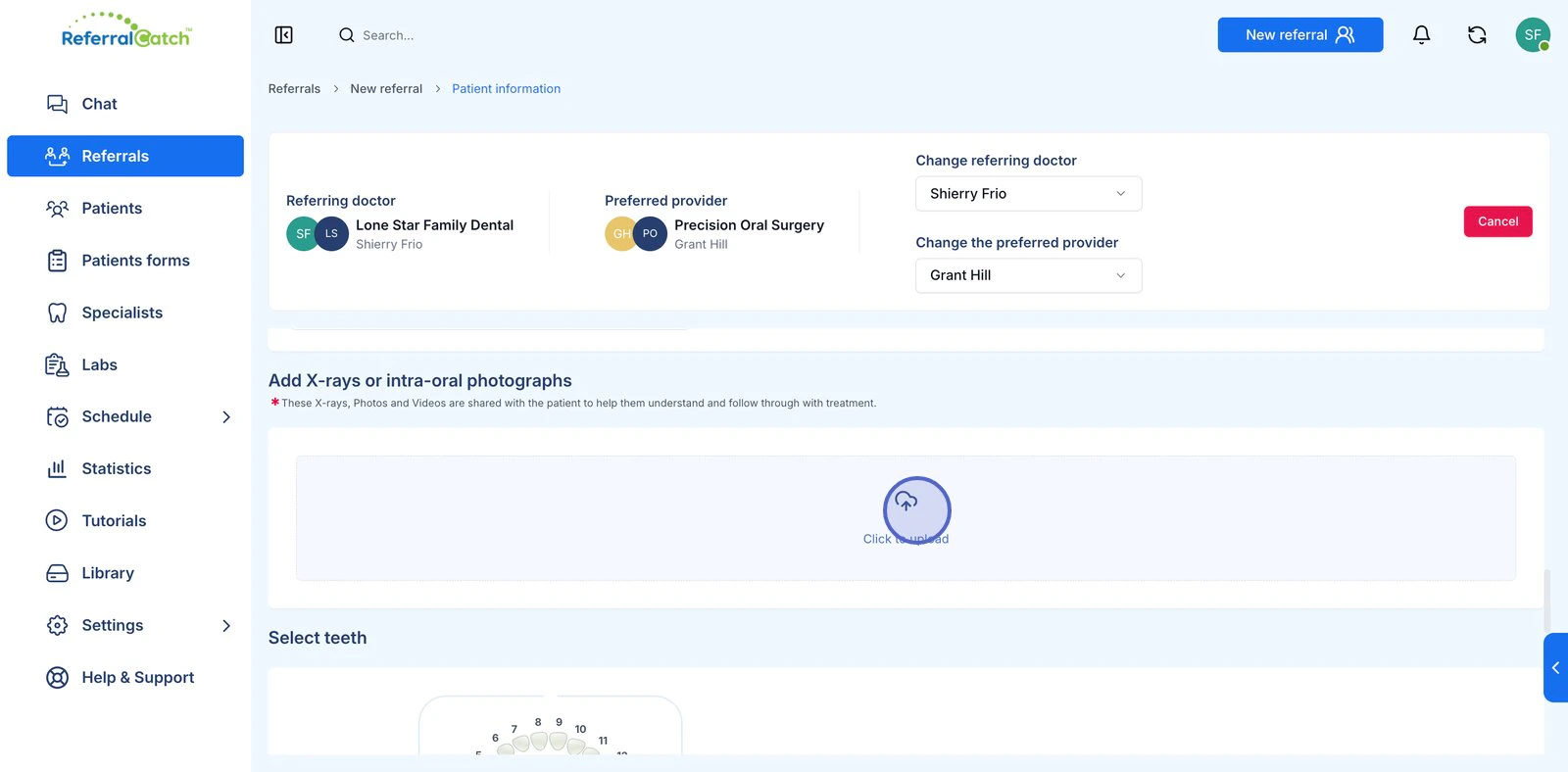 Click **Click to upload** to attach X-rays, photos, or videos. These files are shared with both the specialist and the patient to help the patient understand and follow through with treatment.
### Select teeth
The interactive dental chart lets you mark which teeth are being referred. Click any tooth in the chart to select it.
Click **Click to upload** to attach X-rays, photos, or videos. These files are shared with both the specialist and the patient to help the patient understand and follow through with treatment.
### Select teeth
The interactive dental chart lets you mark which teeth are being referred. Click any tooth in the chart to select it.
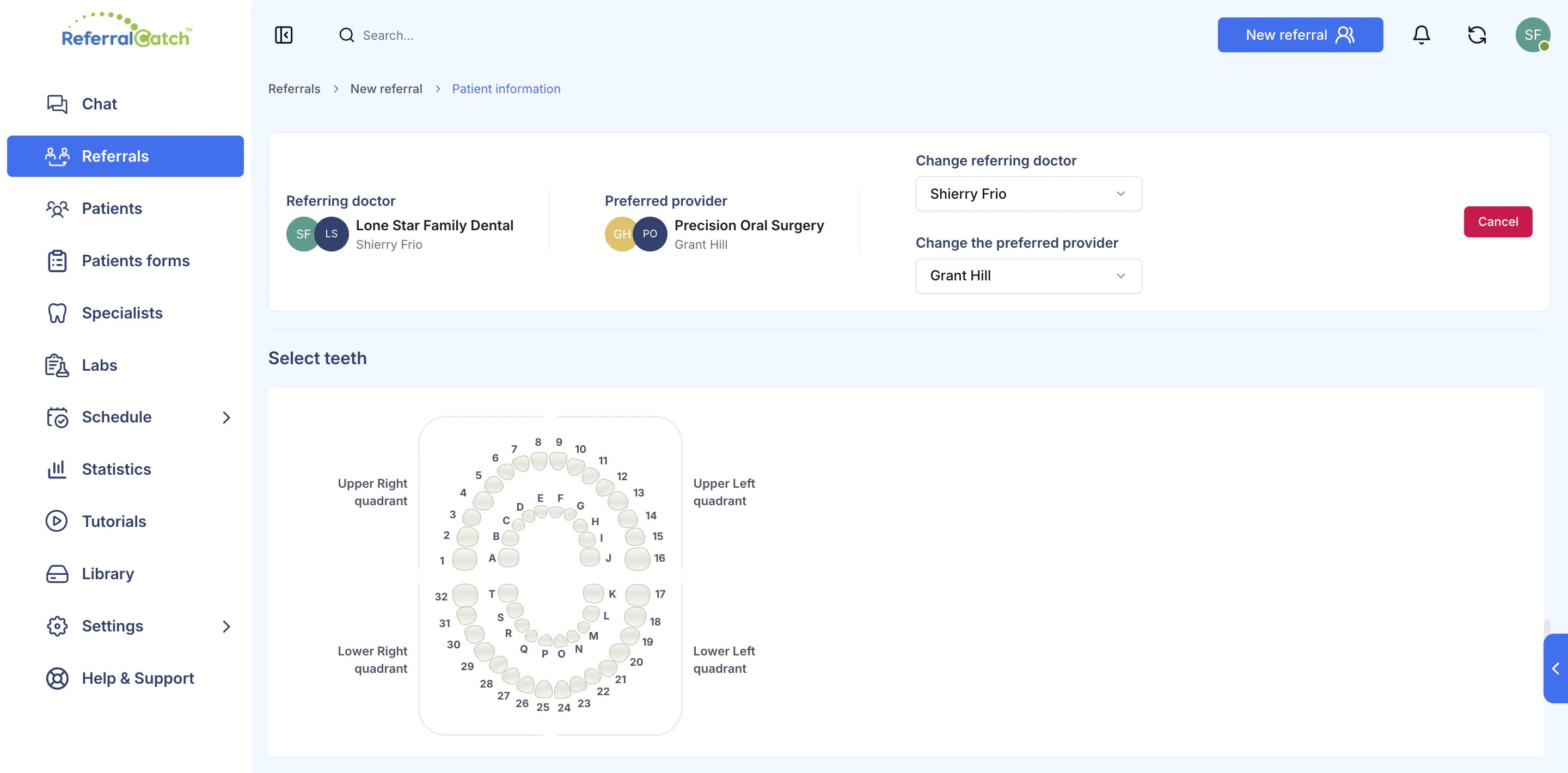 Selected teeth appear in the panel to the right of the chart with their quadrant and tooth number confirmed.
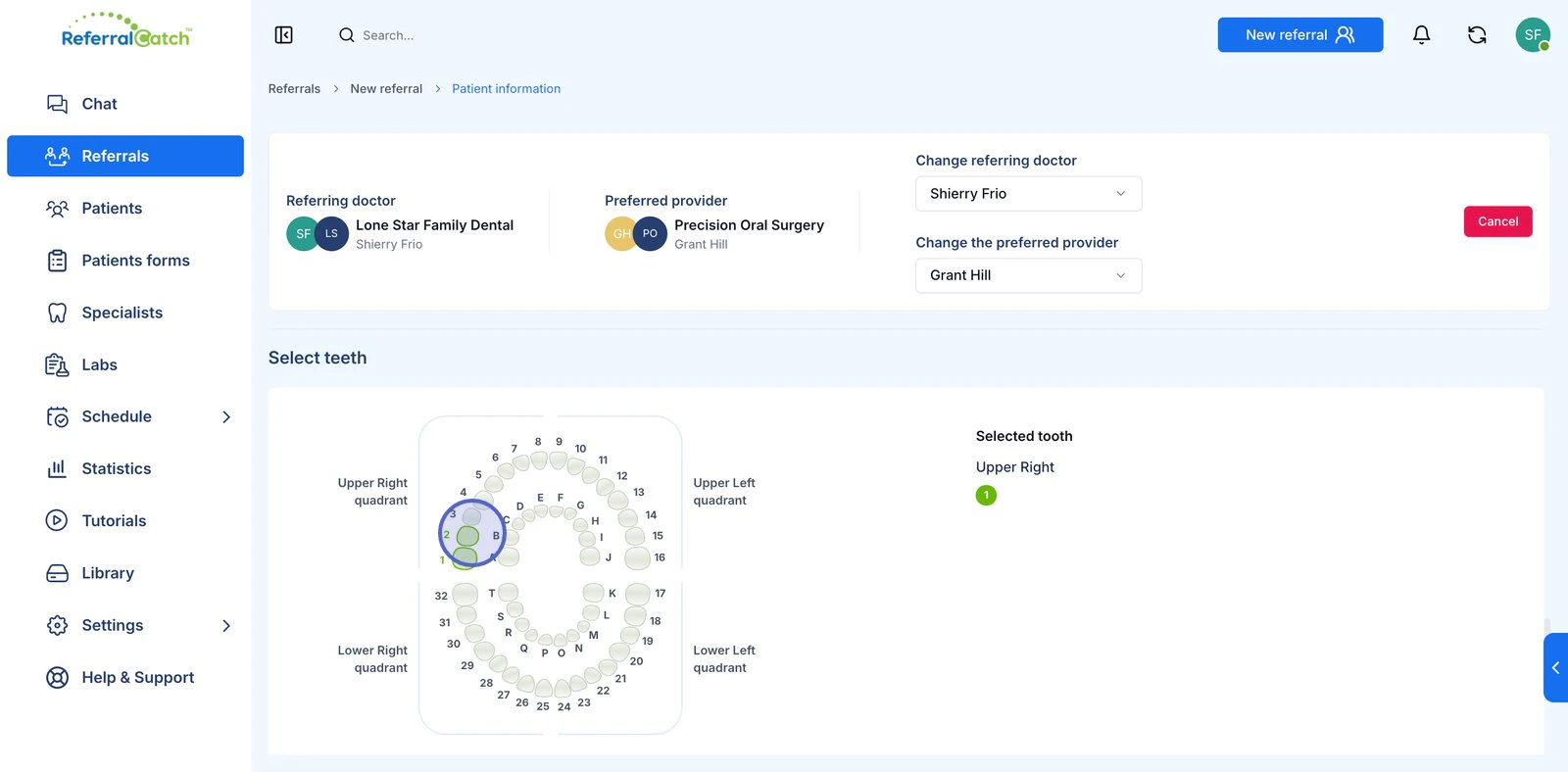 The chart uses standard US tooth numbering — 1–32 for permanent teeth, A–T for primary (baby) teeth.
Scroll down to the **Quick notes & additional files** section.
The chart uses standard US tooth numbering — 1–32 for permanent teeth, A–T for primary (baby) teeth.
Scroll down to the **Quick notes & additional files** section.
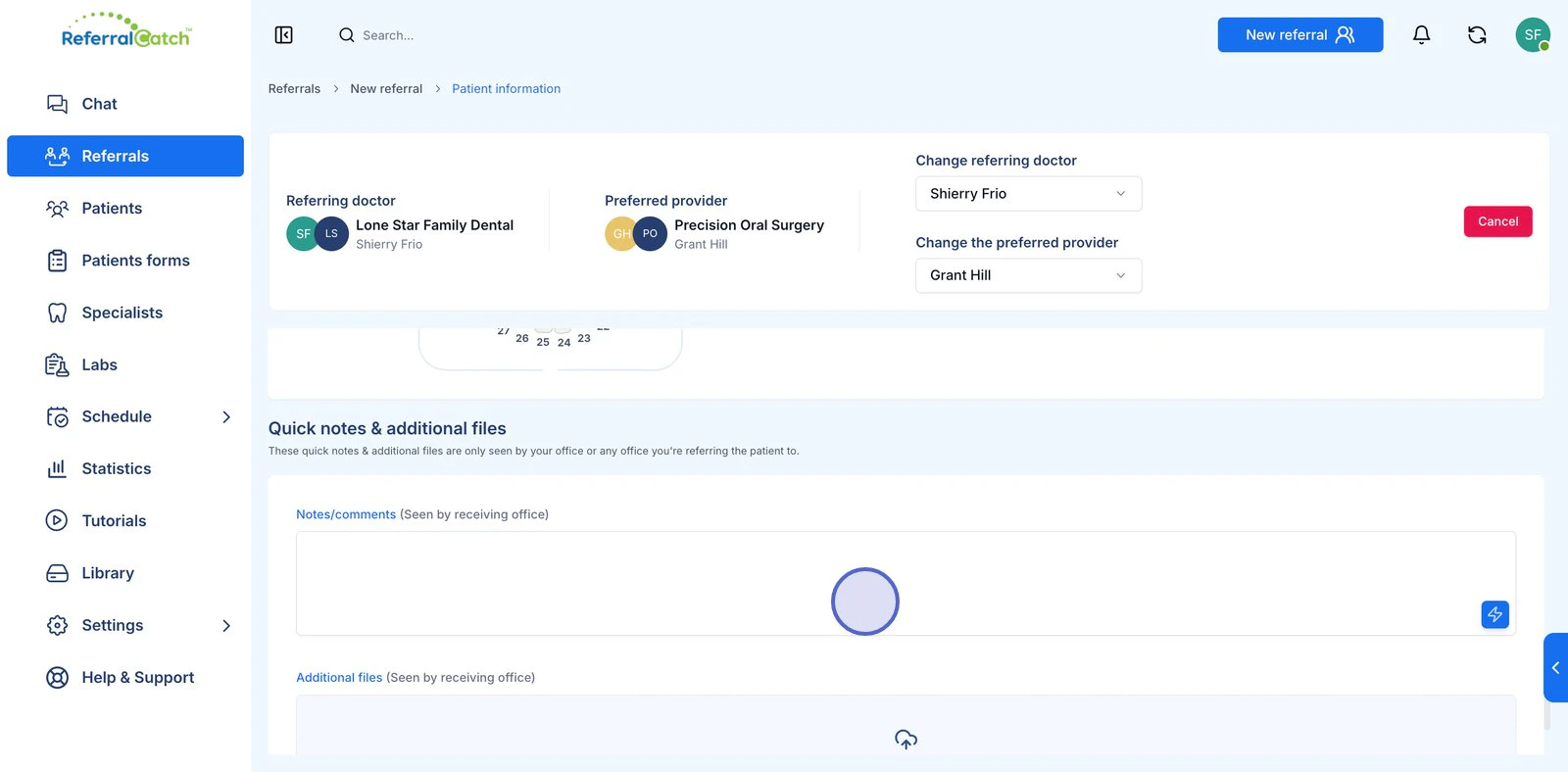 Use the **Notes/comments** field to add any clinical context for the specialist — urgency level, previous treatment history, patient concerns, or specific instructions.
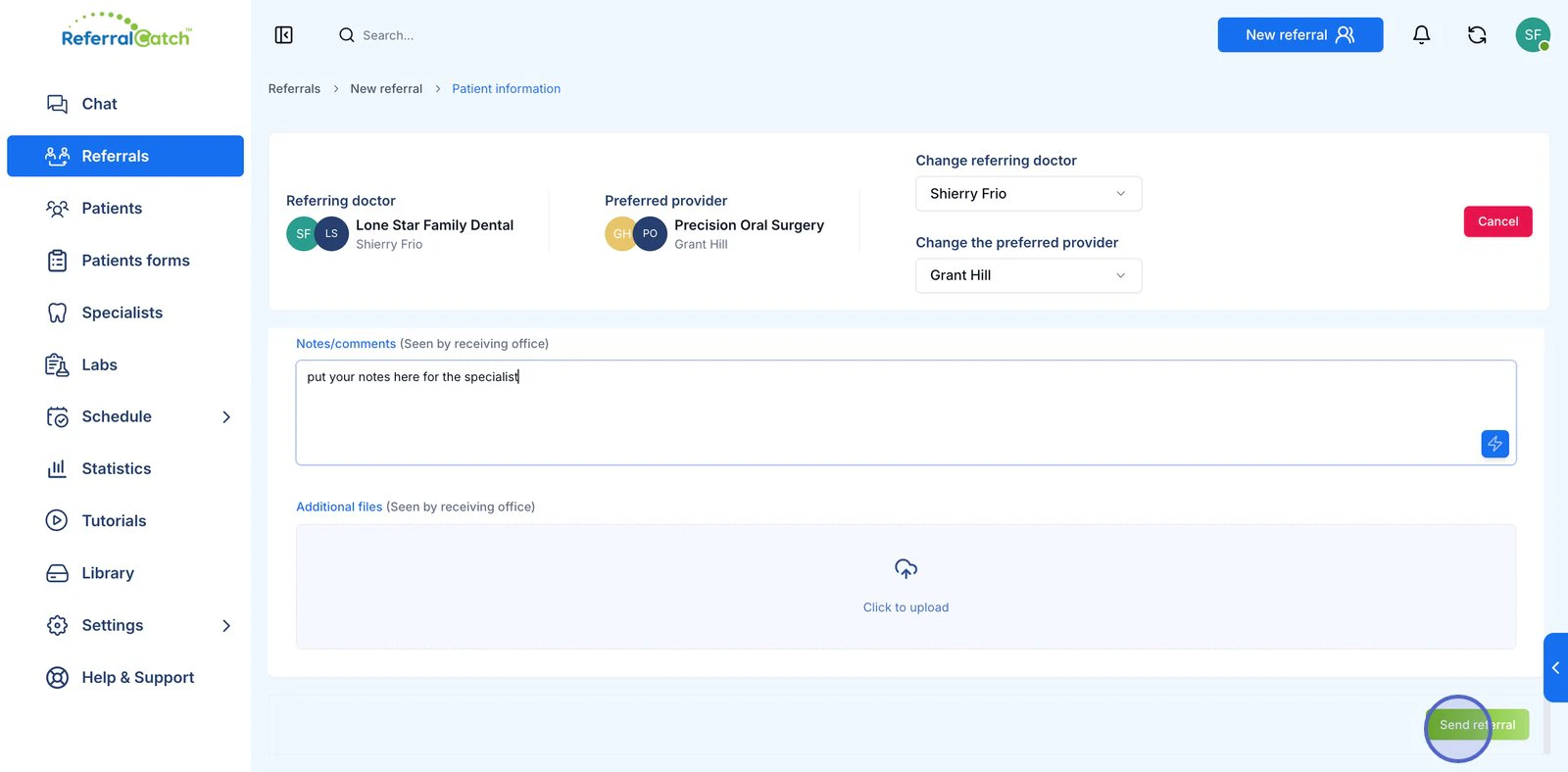 Notes and files in this section are visible only to your office and the receiving specialist's office — they are **not** shared with the patient.
Click **Send referral** in the bottom-right corner.
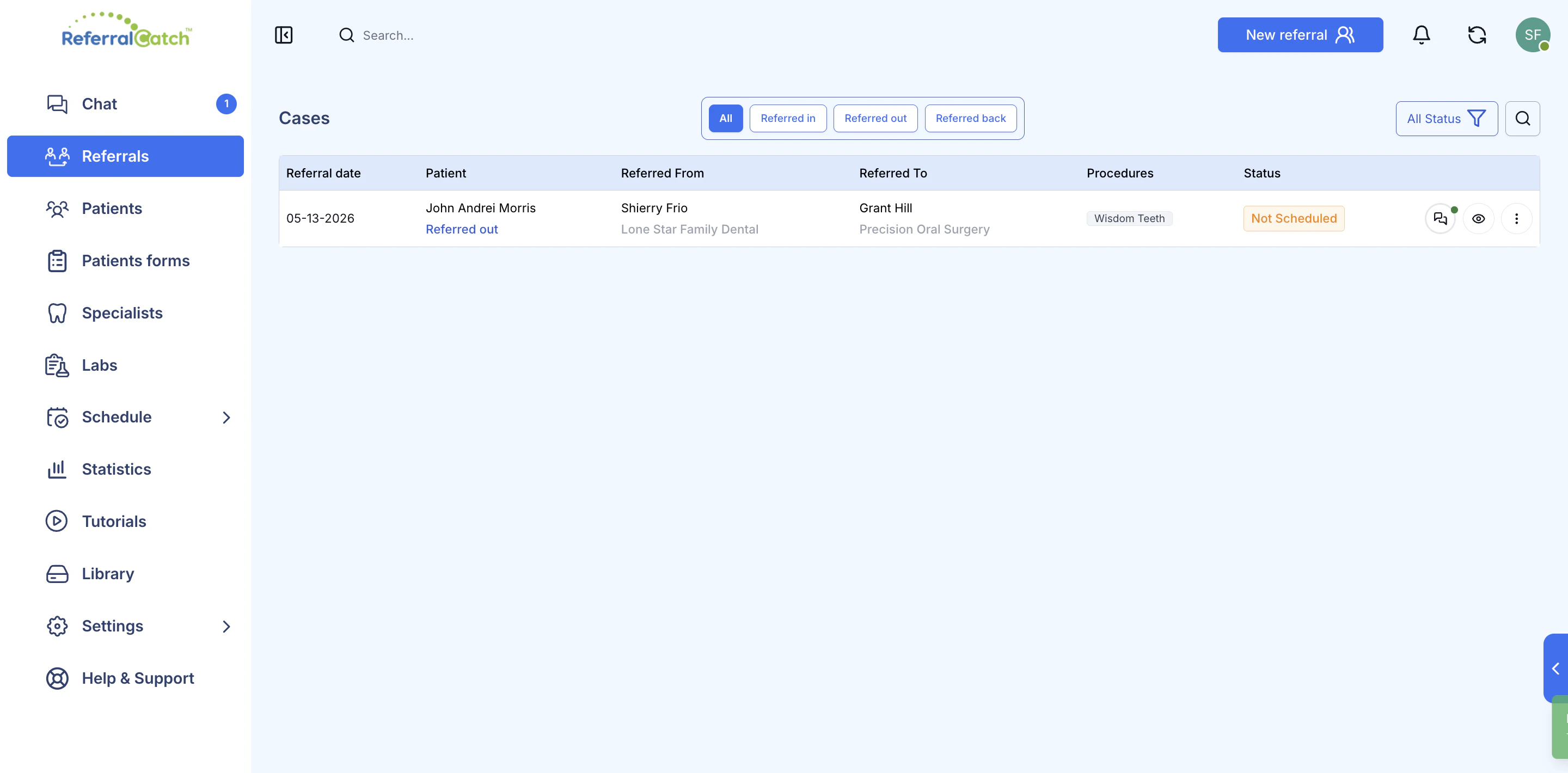
You'll return to the Cases list, where the new referral appears immediately with a status of **Not Scheduled**. The specialist receives a notification and can begin reviewing the case.
Notes and files in this section are visible only to your office and the receiving specialist's office — they are **not** shared with the patient.
Click **Send referral** in the bottom-right corner.
You'll return to the Cases list, where the new referral appears immediately with a status of **Not Scheduled**. The specialist receives a notification and can begin reviewing the case.
 ***
## What Happens After You Send
| What happens | Who acts |
| ---------------------------------- | --------------------------------------------- |
| Specialist receives a notification | ReferralCatch alerts the receiving office |
| Status updates to **Scheduled** | Specialist confirms the appointment date |
| Patient receives referral details | Sent to the patient's phone or email |
| You can message the specialist | Use the **Chat** tab directly on the referral |
***
## Frequently Asked Questions
No — once a referral is submitted, the receiving provider is locked. Contact us at [support@referralcatch.com](mailto:support@referralcatch.com) if you need to redirect a referral.
Ask them to check their spam or junk folder. If it still doesn't arrive, confirm the phone number is correct and resend. Codes expire after a short window — a fresh request generates a new one.
Yes. Click as many procedure tags as apply — all selected procedures are included in the referral the specialist receives.
Yes. All files uploaded to ReferralCatch are encrypted in transit and at rest, in compliance with HIPAA requirements.
It means the referral has been sent and received, but the specialist has not yet confirmed an appointment date for the patient. Once they schedule, the status updates automatically.
***
## Need Help?
If you run into any issues, email us at [support@referralcatch.com](mailto:support@referralcatch.com) and we'll get you sorted out quickly.
***
## What Happens After You Send
| What happens | Who acts |
| ---------------------------------- | --------------------------------------------- |
| Specialist receives a notification | ReferralCatch alerts the receiving office |
| Status updates to **Scheduled** | Specialist confirms the appointment date |
| Patient receives referral details | Sent to the patient's phone or email |
| You can message the specialist | Use the **Chat** tab directly on the referral |
***
## Frequently Asked Questions
No — once a referral is submitted, the receiving provider is locked. Contact us at [support@referralcatch.com](mailto:support@referralcatch.com) if you need to redirect a referral.
Ask them to check their spam or junk folder. If it still doesn't arrive, confirm the phone number is correct and resend. Codes expire after a short window — a fresh request generates a new one.
Yes. Click as many procedure tags as apply — all selected procedures are included in the referral the specialist receives.
Yes. All files uploaded to ReferralCatch are encrypted in transit and at rest, in compliance with HIPAA requirements.
It means the referral has been sent and received, but the specialist has not yet confirmed an appointment date for the patient. Once they schedule, the status updates automatically.
***
## Need Help?
If you run into any issues, email us at [support@referralcatch.com](mailto:support@referralcatch.com) and we'll get you sorted out quickly.